
Using Remove-MailboxUserConfiguration in Powershell

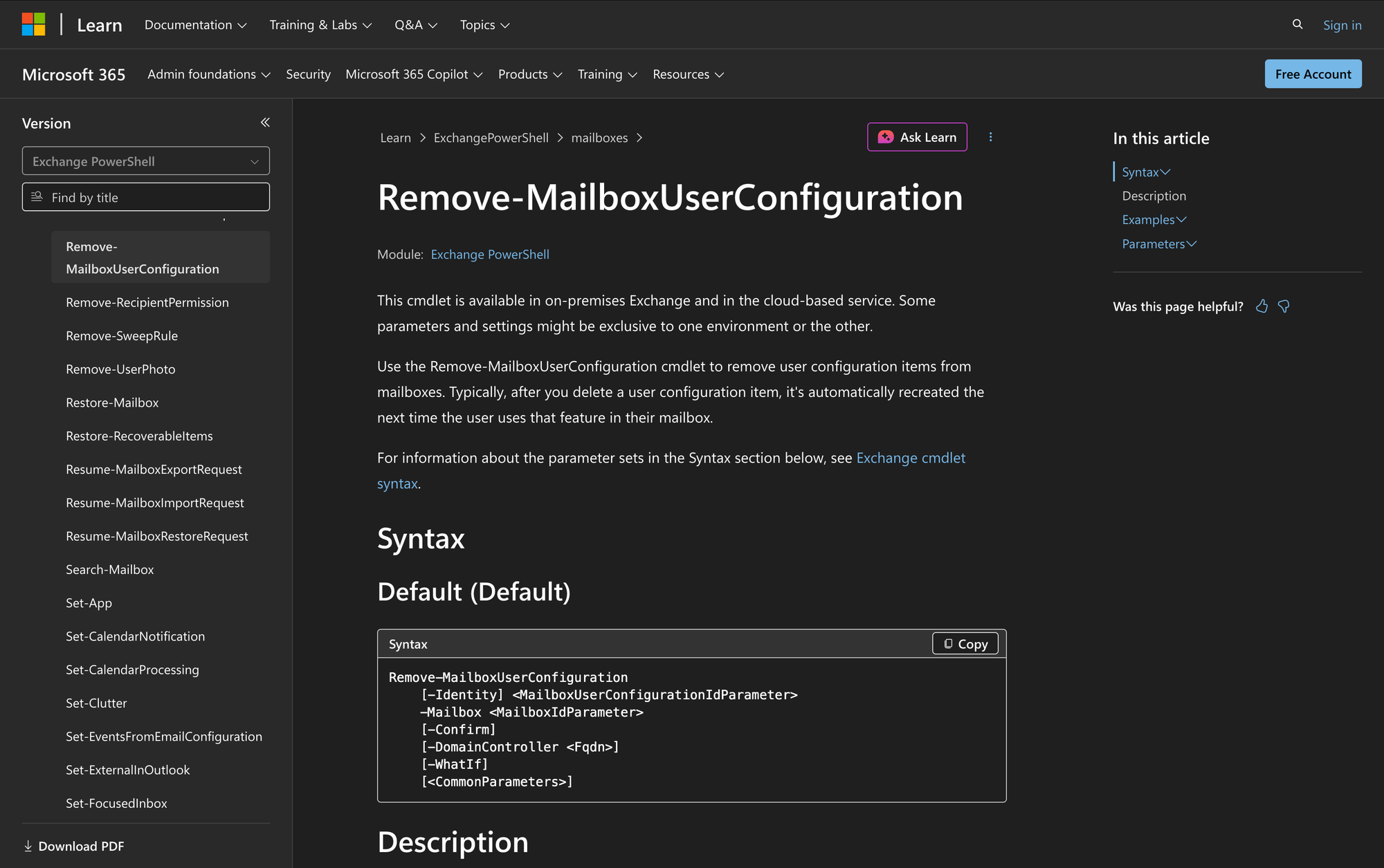
In Microsoft Exchange, mailbox data includes more than messages and folders. There are also user-specific configuration items tied to mailbox features, and administrators sometimes need to remove a stored configuration item associated with a mailbox feature.
That is where Remove-MailboxUserConfiguration comes in. This cmdlet is available in both Exchange Online and on-premises Exchange environments, and it gives administrators a direct way to delete specific mailbox user configuration items.
In many cases, after the item is deleted, it is recreated automatically the next time the user uses that feature in the mailbox. Before removing anything, it often helps to first review mailbox user configuration items with Get-MailboxUserConfiguration so you know exactly what is stored in the mailbox.
What is the Remove-MailboxUserConfiguration Cmdlet?
The Remove-MailboxUserConfiguration cmdlet is used to remove user configuration items from mailboxes. According to Microsoft, these are user configuration items stored in a mailbox, and after you delete one, it is typically recreated automatically the next time the user uses that feature in their mailbox.
This cmdlet is available in the cloud-based service and in on-premises Exchange. Microsoft also notes that some parameters and settings can be exclusive to one environment or the other. In this case, the DomainController parameter is available only in on-premises Exchange.
A key part of using this cmdlet correctly is understanding the Identity format. The Identity parameter specifies the user configuration item you want to remove and uses the syntax MailboxFolder\ItemName. Microsoft states that valid values for MailboxFolder are folder names such as Inbox or Calendar, or the values Configuration and Root. For ItemName, valid values start with IPM.Configuration. This is the item inside the mailbox that you want to delete.
The Confirm switch controls whether a confirmation prompt is shown. Microsoft notes that its effect depends on whether the cmdlet requires confirmation before proceeding. When a confirmation prompt would otherwise appear, you can skip it by using -Confirm:$false.
Syntax
Here is official syntax as per Microsoft documentation:
Remove-MailboxUserConfiguration
[-Identity] <MailboxUserConfigurationIdParameter>
-Mailbox <MailboxIdParameter>
[-Confirm]
[-DomainController <Fqdn>]
[-WhatIf]
[<CommonParameters>]
Parameters
- Identity - Specifies the user configuration item that you want to remove. This parameter uses the syntax MailboxFolder\ItemName.
- Mailbox - Specifies the mailbox that contains the user configuration items you want to remove.
- Confirm - Specifies whether to show or hide the confirmation prompt.
- DomainController - Specifies the domain controller used by this cmdlet to read data from or write data to Active Directory. This parameter is available only in on-premises Exchange.
- WhatIf - Shows what the command does without making any changes.
- CommonParameters - Supports standard PowerShell common parameters such as Verbose, Debug, ErrorAction, and others documented by Microsoft.
Practical Uses
1. Removing a mailbox user configuration item
An administrator can use this cmdlet when a specific user configuration item needs to be removed from a mailbox. Microsoft states that after a configuration item is deleted, it is typically recreated automatically the next time the user uses the associated feature in the mailbox.
The administrator targets the specific configuration item stored in the user's mailbox by supplying the mailbox identifier and the item's documented MailboxFolder\ItemName identity.
The command removes the specified user configuration item rather than applying a broader mailbox-level configuration change.
2. Clearing a specified configuration item during mailbox troubleshooting
During mailbox troubleshooting, an administrator might decide to remove a known user configuration item and then test the associated mailbox feature again.
After the item is removed, it is typically recreated when the user uses that feature again. This can provide a newly created version of the configuration item for further testing.
This action should be limited to a configuration item that the administrator has identified and verified before running the removal command.
3. Managing configuration items in on-premises Exchange with a specific domain controller
In on-premises environments, Microsoft provides the DomainController parameter for this cmdlet. That allows administrators to specify the FQDN of the domain controller used to read from or write to Active Directory.
This can matter in larger Exchange organizations where administrators want to direct the operation to a specific domain controller, such as dc01.contoso.com. It gives more control over where the change is processed, which can be useful in standard administrative workflows for Exchange Server 2016, Exchange Server 2019, or Exchange Server SE.
The cloud-based service does not use this parameter. So while the cmdlet works in both environments, this is one of the practical differences administrators need to keep in mind before running the command.
Prerequisites
Before using Remove-MailboxUserConfiguration, the following requirements apply:
- You need to be assigned the required permissions before you can run this cmdlet.
- Microsoft notes that although the documentation lists all parameters, you might not have access to some parameters if they are not included in the permissions assigned to you.
- The cmdlet is available in Exchange Online and in on-premises Exchange.
- The DomainController parameter is available only in Exchange Server 2016, Exchange Server 2019, and Exchange Server SE.
- You need to know the mailbox that contains the user configuration item you want to remove.
- You need to know the Identity value in the documented MailboxFolder\ItemName format.
How to Use Remove-MailboxUserConfiguration: 7 Practical Uses
The examples below show how administrators can use Remove-MailboxUserConfiguration in real Exchange environments. Each example is based on the syntax and parameters documented by Microsoft. Since this cmdlet deletes mailbox user configuration items, it is a good idea to verify the mailbox and item name before running the command.
1. Remove a specific user configuration item from a mailbox
Command:
Remove-MailboxUserConfiguration -Mailbox james@meetingroom365.com -Identity Configuration\IPM.Configuration.Aggregated.OwaUserConfiguration
This is the same pattern Microsoft shows in its example. The command removes the specified user configuration item from James's mailbox. The mailbox is identified by email address, which Microsoft lists as one of the supported values for the Mailbox parameter.
The Identity value uses the documented format MailboxFolder\ItemName. In this case, the mailbox folder is Configuration, and the item name starts with IPM.Configuration, which matches Microsoft's documented requirement for valid item names.
This type of command is useful when you already know the exact configuration item that needs to be removed. It gives you a direct way to target that specified item.
2. Remove a configuration item from Simon's mailbox
Command:
Remove-MailboxUserConfiguration -Mailbox simon@meetingroom365.com -Identity Configuration\IPM.Configuration.Aggregated.OwaUserConfiguration
This example does the same action for Simon's mailbox. Microsoft documents that the Mailbox parameter can use any value that uniquely identifies the mailbox, and an email address is one of the accepted values.
The command applies only to the mailbox identified by the Mailbox parameter and removes the configuration item identified by the Identity parameter.
It also keeps the task simple. You specify the mailbox, specify the configuration item, and remove that object from the mailbox.
3. Preview the action without making changes
Command:
Remove-MailboxUserConfiguration -Mailbox james@meetingroom365.com -Identity Configuration\IPM.Configuration.Aggregated.OwaUserConfiguration -WhatIf
The WhatIf switch shows what the command does without making any changes. Microsoft explicitly documents this behavior for the parameter.
This lets you preview the operation before running the command without WhatIf. Review the displayed operation and independently verify that the mailbox and configuration item are correct before removing the item.
4. Remove the item without the confirmation prompt
Command:
Remove-MailboxUserConfiguration -Mailbox james@meetingroom365.com -Identity Configuration\IPM.Configuration.Aggregated.OwaUserConfiguration -Confirm:$false
The Confirm switch specifies whether to show or hide the confirmation prompt. Microsoft states that the effect of this switch depends on whether the cmdlet requires confirmation before proceeding. When a confirmation prompt would otherwise appear, you can skip it by using the exact syntax -Confirm:$false.
This is useful in a reviewed command or script where you do not want the operation to pause for confirmation.
5. Use a folder name in the Identity value
Command:
Remove-MailboxUserConfiguration -Mailbox james@meetingroom365.com -Identity Inbox\IPM.Configuration.CustomView
Microsoft states that valid values for MailboxFolder include folder names such as Inbox or Calendar, as well as Configuration and Root. This example demonstrates the documented syntax with Inbox as the folder portion of the identity.
The key point here is the structure of the Identity parameter. The first part identifies the mailbox folder, and the second part identifies the item name. Microsoft also states that valid item names start with IPM.Configuration.
The item name in this example is a placeholder. Replace it with the name of an existing user configuration item in the target mailbox.
6. Use the Root value in the Identity parameter
Command:
Remove-MailboxUserConfiguration -Mailbox simon@meetingroom365.com -Identity Root\IPM.Configuration.SampleItem
Microsoft documents Root as another valid value for MailboxFolder in the Identity parameter. This example shows how the command looks when the configuration item is under Root instead of Configuration or a standard mailbox folder.
The command still follows the same documented pattern: MailboxFolder\ItemName.
The item name in this example is a placeholder. Replace it with the name of an existing user configuration item under Root in the target mailbox.
7. Specify a domain controller in on-premises Exchange
Command:
Remove-MailboxUserConfiguration -Mailbox james@meetingroom365.com -Identity Configuration\IPM.Configuration.Aggregated.OwaUserConfiguration -DomainController dc01.contoso.com
The DomainController parameter is available only in on-premises Exchange. Microsoft documents it as applicable to Exchange Server 2016, Exchange Server 2019, and Exchange Server SE.
This parameter specifies the domain controller used by the cmdlet to read data from or write data to Active Directory. Microsoft says you identify the domain controller by its fully qualified domain name, such as dc01.contoso.com.
This example is relevant for administrators managing on-premises Exchange environments where they want to direct the operation to a specific domain controller. It is not used in Exchange Online.
Final Note
Remove-MailboxUserConfiguration is a focused Exchange cmdlet for deleting user configuration items from a mailbox. When used carefully with the correct Mailbox and Identity values, it gives administrators a straightforward way to remove a configuration item that will typically be recreated the next time the user uses that mailbox feature.