
How to Configure Outlook Working Hours with Powershell

Incorrect working hours can cause Outlook and the Scheduling Assistant to treat inconvenient times as part of a user's normal workday. The settings do not replace free/busy data, but they affect how calendar availability is presented and how users interpret suggested meeting times.
Exchange administrators can manage legacy working-hours and calendar-layout properties with Set-MailboxCalendarConfiguration, then confirm them with Get-MailboxCalendarConfiguration. The cmdlets are available in Exchange Online and the on-premises Exchange versions listed in Microsoft's cmdlet documentation. For broader cmdlet coverage, see the Set-MailboxCalendarConfiguration PowerShell guide.
This article stays limited to working hours and calendar layout. For other mailbox-level meeting settings, see Outlook online meeting defaults with PowerShell.
How Outlook Working-Hours Settings Fit Together
Four properties define the legacy work schedule:
- WorkDays selects the days treated as workdays.
- WorkingHoursStartTime sets one start time for every selected workday.
- WorkingHoursEndTime sets one end time for every selected workday.
- WorkingHoursTimeZone tells Exchange which time zone applies to those start and end times.
These properties should be treated as one policy. Setting 9:00 A.M. to 5:00 P.M. without checking the time zone can leave a mailbox with correct-looking hours tied to the wrong region.
fff and TimeIncrement control calendar layout. They do not add workdays, change start or end times, or modify free/busy entries. WeekStartDay chooses the first column in the calendar week, while FirstWeekOfYear controls how numbered weeks begin.
Parameters for Working Hours and Calendar Layout
WorkingHoursTimeZone does not expect an IANA identifier such as America/Los_Angeles. It expects a supported time-zone key name. Microsoft uses "Pacific Standard Time" as its documented example.
Modern Work Hours Versus Legacy Work Hours
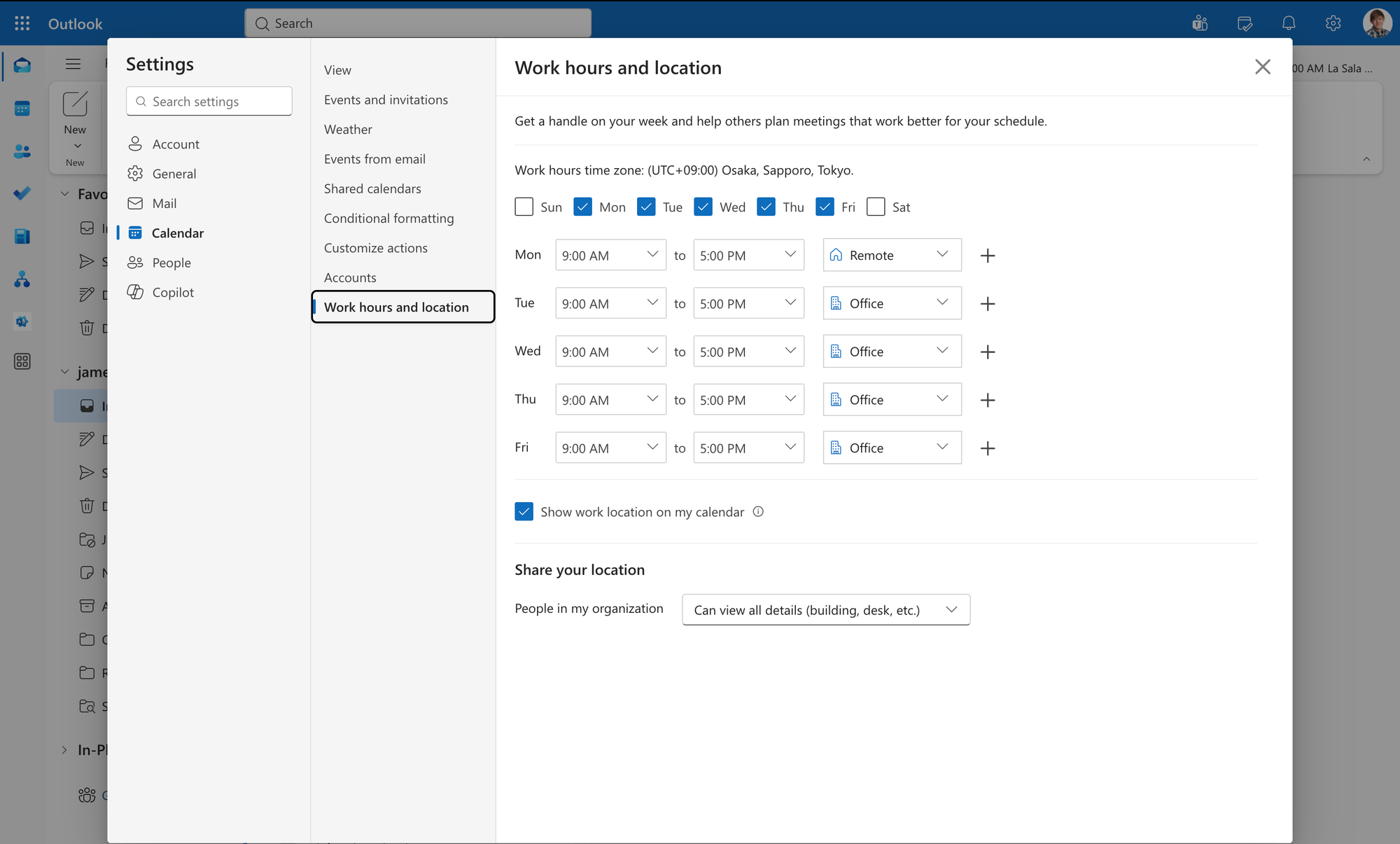
Modern Outlook work hours and location can store different hours and locations for different days. A user might work 8:00 A.M. to 5:00 P.M. on Monday and Tuesday, then 10:00 A.M. to 7:00 P.M. on Wednesday. The modern schedule can also record whether the user is remote or in the office for a given day.
The legacy mailbox properties covered here support selected workdays plus one shared start time and one shared end time. When modern work hours differ by day, Outlook approximates them in the legacy fields by using the earliest start time and latest end time. This allows older clients to retain a broad representation of the user's schedule.
Before a user sets modern work hours, changes to the legacy hours can update the modern times. After the user sets or updates the modern schedule, later changes to legacy start and end times might not overwrite it.
The exception is the working-hours time zone: a legacy time-zone change continues to update the modern working-hours time zone.
Set-MailboxCalendarConfiguration manages the legacy fields documented by Microsoft. It does not provide documented parameters for a separate start time, end time, and work location on every day. For the newer work-location behavior, see Outlook work location and free/busy with PowerShell.
Check Current Working-Hours Settings
Read the mailbox before changing it:
Get-MailboxCalendarConfiguration -Identity james@meetingroom365.com | Select-Object WorkDays,WorkingHoursStartTime,WorkingHoursEndTime,WorkingHoursTimeZone,WeekStartDay,FirstWeekOfYear,ShowWeekNumbers,TimeIncrement
Review the four working-hours properties together. Then check the layout properties separately. This makes it easier to spot a valid start and end time paired with the wrong time zone, or a calendar layout that does not match company policy. Get-MailboxCalendarConfiguration returns these calendar properties for the specified mailbox.
How to Configure Outlook Working Hours with PowerShell
Run these commands in Exchange Online PowerShell or the Exchange Management Shell with an account that has permission to update the target mailboxes.
1. View Current Working-Hours Settings
Administrative purpose: record the current schedule before making a change.
Command:
Get-MailboxCalendarConfiguration -Identity james@meetingroom365.com | Select-Object WorkDays,WorkingHoursStartTime,WorkingHoursEndTime,WorkingHoursTimeZone,WeekStartDay,FirstWeekOfYear,ShowWeekNumbers,TimeIncrement
Identity selects James's mailbox. Select-Object limits the output to the properties used in this guide. This command changes nothing, so no separate verification command is needed.
2. Configure a Monday-to-Friday Schedule
Administrative purpose: set a standard weekday schedule from 8:30 A.M. to 5:30 P.M.
Command:
Set-MailboxCalendarConfiguration -Identity james@meetingroom365.com -WorkDays Weekdays -WorkingHoursStartTime 08:30:00 -WorkingHoursEndTime 17:30:00 -WorkingHoursTimeZone "Pacific Standard Time"
Identity selects the mailbox. WorkDays Weekdays sets Monday through Friday. WorkingHoursStartTime and WorkingHoursEndTimeset the shared hours for those days. WorkingHoursTimeZone defines how Exchange interprets both times.
Verification:
Get-MailboxCalendarConfiguration -Identity james@meetingroom365.com | Select-Object WorkDays,WorkingHoursStartTime,WorkingHoursEndTime,WorkingHoursTimeZone
3. Configure a Tuesday-to-Saturday Schedule
Administrative purpose: configure a nonstandard five-day workweek without treating Monday as a workday.
Command:
Set-MailboxCalendarConfiguration -Identity simon@meetingroom365.com -WorkDays Tuesday,Wednesday,Thursday,Friday,Saturday -WorkingHoursStartTime 09:00:00 -WorkingHoursEndTime 18:00:00 -WorkingHoursTimeZone "Pacific Standard Time"
The five individual values passed to WorkDays define Tuesday through Saturday. The start and end parameters apply the same 9:00 A.M. to 6:00 P.M. schedule to each selected day. The time-zone parameter ties those values to the documented Microsoft key name.
Verification:
Get-MailboxCalendarConfiguration -Identity simon@meetingroom365.com | Select-Object WorkDays,WorkingHoursStartTime,WorkingHoursEndTime,WorkingHoursTimeZone
4. Change Only the Working-Hours Time Zone
Administrative purpose: correct the time zone without changing the mailbox's existing workdays or hours.
Command:
Set-MailboxCalendarConfiguration -Identity james@meetingroom365.com -WorkingHoursTimeZone "Pacific Standard Time"
Identity selects the mailbox, and WorkingHoursTimeZone changes only the zone used to interpret the stored start and end times. The other working-hours properties are not included, so the cmdlet does not intentionally replace them.
Verification:
Get-MailboxCalendarConfiguration -Identity james@meetingroom365.com | Select-Object WorkingHoursStartTime,WorkingHoursEndTime,WorkingHoursTimeZone
5. Set Monday as the First Day of the Week
Administrative purpose: make the calendar week begin on Monday without changing which days are workdays.
Command:
Set-MailboxCalendarConfiguration -Identity james@meetingroom365.com -WeekStartDay Monday
WeekStartDay Monday changes the calendar layout. It does not change WorkDays, so a mailbox can begin its displayed week on Monday while using any valid workweek pattern.
Verification:
Get-MailboxCalendarConfiguration -Identity james@meetingroom365.com | Select-Object WeekStartDay,WorkDays
6. Use FirstFourDayWeek and Display Week Numbers
Administrative purpose: number weeks using the first week that contains at least four days, and show those numbers in the calendar.
Command:
Set-MailboxCalendarConfiguration -Identity james@meetingroom365.com -FirstWeekOfYear FirstFourDayWeek -ShowWeekNumbers $true
FirstWeekOfYear FirstFourDayWeek starts numbering with the first week that has at least four days. The calculation also uses the mailbox's configured WeekStartDay. ShowWeekNumbers $true displays week numbers in the Outlook on the web calendar.
Verification:
Get-MailboxCalendarConfiguration -Identity james@meetingroom365.com | Select-Object WeekStartDay,FirstWeekOfYear,ShowWeekNumbers
7. Change the Calendar Scale to Fifteen-Minute Increments
Administrative purpose: show a finer calendar scale for teams that commonly schedule short meetings.
Command:
Set-MailboxCalendarConfiguration -Identity james@meetingroom365.com -TimeIncrement FifteenMinutes`
TimeIncrement FifteenMinutes sets the Outlook on the web calendar scale to fifteen-minute intervals. The documented default is thirty-minute intervals. It does not change meeting duration or working hours.
Verification:
Get-MailboxCalendarConfiguration -Identity james@meetingroom365.com | Select-Object TimeIncrement
8. Apply a Standard Working-Hours Policy to Selected Mailboxes
Administrative purpose: apply the same weekday schedule to an explicit mailbox list while avoiding an organization-wide update.
Preview command:
$mailboxes = @("james@meetingroom365.com","simon@meetingroom365.com"); foreach ($mailbox in $mailboxes) { Set-MailboxCalendarConfiguration -Identity $mailbox -WorkDays Weekdays -WorkingHoursStartTime 09:00:00 -WorkingHoursEndTime 17:00:00 -WorkingHoursTimeZone "Pacific Standard Time" -WhatIf }
WhatIf reports the intended action without saving changes. Review the mailbox list and output before running the actual command.
Command:
$mailboxes = @("james@meetingroom365.com","simon@meetingroom365.com"); foreach ($mailbox in $mailboxes) { Set-MailboxCalendarConfiguration -Identity $mailbox -WorkDays Weekdays -WorkingHoursStartTime 09:00:00 -WorkingHoursEndTime 17:00:00 -WorkingHoursTimeZone "Pacific Standard Time" }
The array limits the update to two selected mailboxes. Each loop iteration passes the current email address to Identity, then applies weekday workdays, a shared 9:00 A.M. to 5:00 P.M. schedule, and the same supported time-zone key.
Verification:
$mailboxes = @("james@meetingroom365.com","simon@meetingroom365.com"); foreach ($mailbox in $mailboxes) { Get-MailboxCalendarConfiguration -Identity $mailbox | Select-Object @{Name="Mailbox";Expression={$mailbox}},WorkDays,WorkingHoursStartTime,WorkingHoursEndTime,WorkingHoursTimeZone }
Common Mistakes
- Using an IANA time-zone identifier: Values such as America/Los_Angeles are not the supported key-name format required by WorkingHoursTimeZone. Use a supported Microsoft or Windows key name.
- Setting only the start and end times: The times can be misleading when the mailbox has the wrong working-hours time zone.
- Expecting different hours for each day: The legacy parameters provide one start time and one end time for all selected workdays.
- Assuming WeekStartDay changes WorkDays: The first controls layout. The second controls which days are treated as workdays.
- Using redundant WorkDays values: Microsoft documents that redundant values are ignored. For example, Weekdays,Monday resolves to Weekdays.
- Replacing user-specific schedules in bulk: Read current values first, use an explicit mailbox list, and run the bulk command with WhatIf before applying it.
Final Note
Use Get-MailboxCalendarConfiguration before and after each update. Treat workdays, start time, end time, and time zone as one schedule, while treating week start, week numbering, and time scale as layout settings.
These parameters do not create busy appointments or support different legacy hours for each workday. For room and equipment mailboxes, they can define the resource’s working hours, but enforcement requires the resource mailbox option that allows scheduling only during working hours.
For users who already maintain modern per-day work hours and locations, do not assume that a legacy start or end time change will replace their modern schedule.