How to Configure Outlook Calendar Reminders with PowerShell

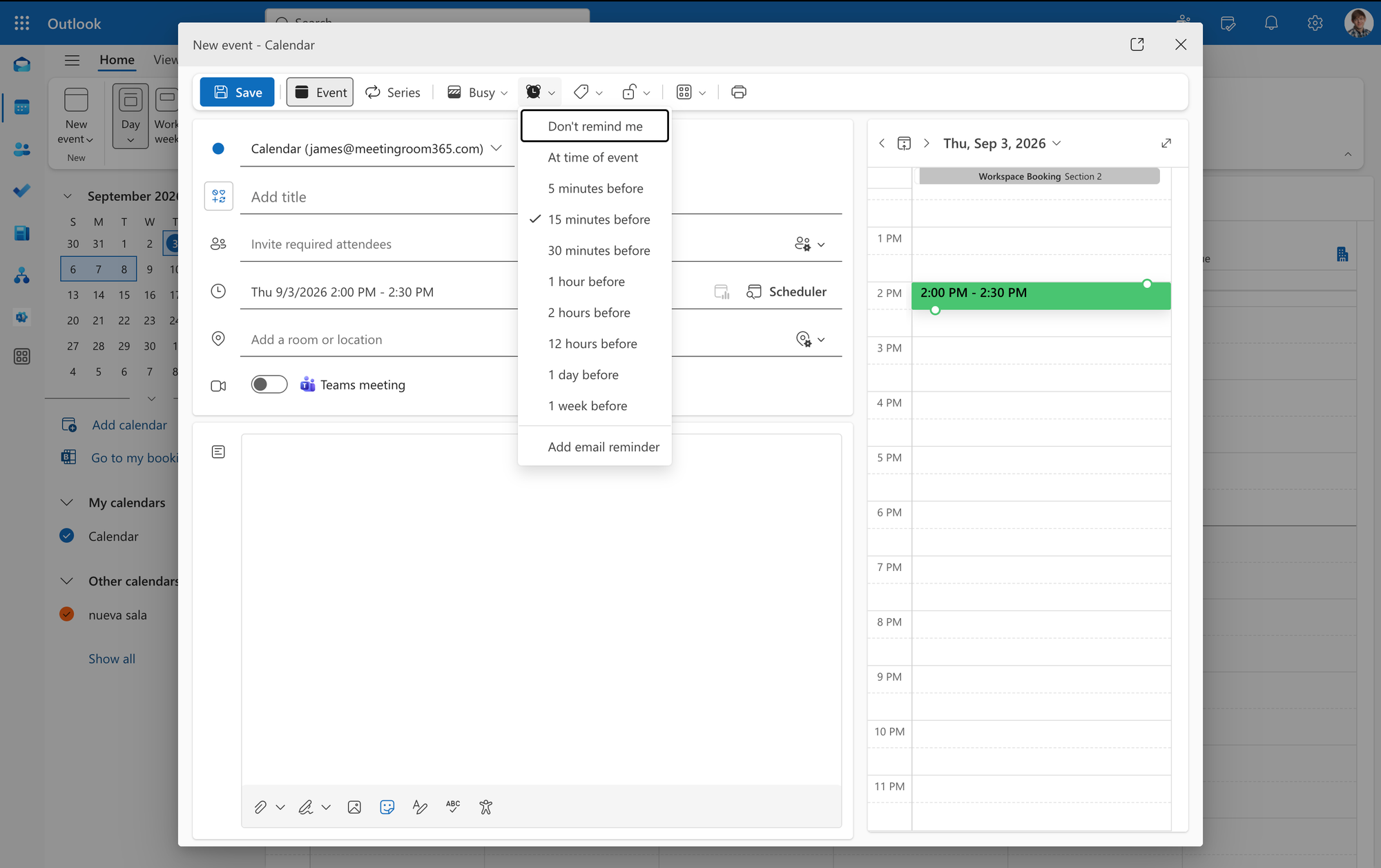
Exchange administrators can use Set-MailboxCalendarConfiguration to configure reminder behavior for individual mailboxes in Outlook on the web. The most relevant settings are RemindersEnabled, DefaultReminderTime, and ReminderSoundEnabled.
These settings let you standardize whether calendar events produce reminders, how far in advance those reminders initially appear, and whether Outlook plays a sound with them. The same cmdlet also exposes several secondary Outlook calendar display settings, including the bright calendar color option and, in Exchange Online, weather preferences.
The cmdlet is available in Exchange Online and supported on-premises Exchange Server versions, although some parameters are cloud-only. For a broader overview of the cmdlet, see our Set-MailboxCalendarConfiguration PowerShell guide.
How Reminder Settings Work Together
Three parameters control the core reminder behavior:
RemindersEnabled accepts $true or $false. Microsoft documents $true as the default. When reminders are disabled, changing the default reminder interval does not cause reminders to appear.
DefaultReminderTime specifies the initial reminder interval before a meeting or appointment. It does not independently turn reminders on. Microsoft explicitly states that this parameter is ignored when RemindersEnabled is $false.
ReminderSoundEnabled separately controls whether Outlook on the web plays a sound with a reminder. Setting it to $false lets users keep visual reminder notifications without the accompanying sound. This parameter is also ignored if reminders themselves are disabled.
Automatically created calendar events are a different feature. Configuring Outlook to create reservations, flights, or other events from email does not replace these reminder settings. See the events from email PowerShell guide for those settings.
Supported Default Reminder Times
DefaultReminderTime uses a TimeSpan value. Microsoft documents a specific set of supported intervals. Do not assume that any arbitrary TimeSpan is valid just because PowerShell accepts the parameter as a TimeSpan type.
Microsoft lists 00:15:00, or 15 minutes, as the default value. Seconds are not supported in the reminder interval.
Calendar Display and Weather Parameters
UseBrightCalendarColorThemeInOwa controls the calendar color style used in Outlook on the web. Set it to $true to use bright calendar colors or $false to use light colors. Microsoft documents $false as the default. This parameter applies to Exchange Server 2016, Exchange Server 2019, Exchange Server SE, and Exchange Online.
Exchange Online weather settings
The weather parameters covered below are Exchange Online only. Do not use them for an on-prem Exchange Server mailbox.
WeatherEnabled controls whether Outlook on the web displays weather in the calendar. Microsoft documents these values:
- FirstRun
- Disabled
- Enabled
FirstRun is documented as the default. Use these status values in commands rather than substituting $true and $false.
WeatherUnit controls the temperature scale and accepts:
- Default
- Celsius
- Fahrenheit
WeatherLocations stores the locations available to the mailbox. Microsoft documents this format:
LocationId:<LocationID>;Name:<Name>;Latitude:<Latitude>;Longitude:<Longitude>
A mailbox can have a maximum of five weather locations.
WeatherLocationBookmark identifies which configured location is selected by default. The index is zero-based. The first location is 0, the second is 1, and the third is 2. If three locations exist, for example, valid bookmark values are 0, 1, and 2.
Check Current Reminder and Display Settings
Use Get-MailboxCalendarConfiguration to inspect a mailbox before changing it. The cmdlet returns calendar configuration data for the mailbox specified with -Identity.
For Exchange Online, you can select only the settings covered in this guide:
Get-MailboxCalendarConfiguration -Identity james@meetingroom365.com |
   Select-Object RemindersEnabled,
                 DefaultReminderTime,
                 ReminderSoundEnabled,
                 UseBrightCalendarColorThemeInOwa,
                 WeatherEnabled,
                 WeatherLocations,
                 WeatherLocationBookmark,
                 WeatherUnit
For an on-prem mailbox, omit the Exchange Online-only weather properties if they are not available in your environment.
The Identity parameter accepts values that uniquely identify the mailbox, including an email address, alias, UPN, GUID, distinguished name, and several other mailbox identifiers. Using the primary email address is usually the clearest choice in administrative PowerShell scripts.
If you are also standardizing employees' working schedules, those settings are covered separately in our Outlook working hours PowerShell guide.
How to Configure Outlook Calendar Reminders
1. View current reminder settings
Check the three reminder-related properties before making a change:
Get-MailboxCalendarConfiguration -Identity james@meetingroom365.com |
   Select-Object RemindersEnabled, DefaultReminderTime, ReminderSoundEnabled
This shows whether reminders are active, the current default reminder interval, and whether reminder sounds are enabled.
2. Disable reminders for James
Set-MailboxCalendarConfiguration -Identity james@meetingroom365.com `
   -RemindersEnabled $false
This disables calendar reminders for James. Once RemindersEnabled is $false, DefaultReminderTime and ReminderSoundEnabled no longer have an effect on reminder behavior.
You can preview the operation without applying it by adding the WhatIf switch:
Set-MailboxCalendarConfiguration -Identity james@meetingroom365.com `
   -RemindersEnabled $false `
   -WhatIf
WhatIf reports what the command would do without applying the change.
3. Re-enable reminders and set the default to fifteen minutes
Set-MailboxCalendarConfiguration -Identity james@meetingroom365.com `
   -RemindersEnabled $true `
   -DefaultReminderTime 00:15:00
This turns reminders back on and sets the initial reminder to 15 minutes before the calendar meeting or appointment.
4. Set a five-minute reminder
Set-MailboxCalendarConfiguration -Identity simon@meetingroom365.com `
   -DefaultReminderTime 00:05:00
This changes Simon's default reminder to five minutes before the event. It assumes reminders are already enabled.
5. Disable reminder sounds without disabling reminders
Set-MailboxCalendarConfiguration -Identity simon@meetingroom365.com `
   -RemindersEnabled $true `
   -ReminderSoundEnabled $false
Reminders remain active, but Outlook on the web does not play a sound with them. This is useful when visual reminder notifications are wanted without audible alerts.
6. Enable the bright calendar color option
Set-MailboxCalendarConfiguration -Identity james@meetingroom365.com `
   -UseBrightCalendarColorThemeInOwa $true
This selects the bright color option for the mailbox calendar in Outlook on the web. It does not modify reminder timing or notification behavior.
7. Enable calendar weather and select a temperature unit
To display calendar weather in Exchange Online and use Celsius:
Set-MailboxCalendarConfiguration -Identity james@meetingroom365.com `
   -WeatherEnabled Enabled `
   -WeatherUnit Celsius
For Fahrenheit, change the final value:
Set-MailboxCalendarConfiguration -Identity james@meetingroom365.com `
   -WeatherEnabled Enabled `
   -WeatherUnit Fahrenheit
Use Disabled to hide weather. Microsoft also documents FirstRun as a valid WeatherEnabled status.
8. Configure weather locations and the selected bookmark
Microsoft documents the following Redmond location example:
Set-MailboxCalendarConfiguration -Identity james@meetingroom365.com `
   -WeatherLocations "LocationId:105808079;Name:Redmond, WA;Latitude:47.679;Longitude:-122.132" `
   -WeatherLocationBookmark 0
Because Redmond is the first configured location, its zero-based bookmark is 0.
To add or remove locations without replacing the existing collection, Microsoft documents the multi-valued property syntax. Use placeholders unless you have valid location metadata:
Set-MailboxCalendarConfiguration -Identity james@meetingroom365.com `
   -WeatherLocations @{
       Add    = "LocationId:<LocationID>;Name:<Name>;Latitude:<Latitude>;Longitude:<Longitude>"
       Remove = "LocationId:<LocationID>;Name:<Name>;Latitude:<Latitude>;Longitude:<Longitude>"
   }
You can also overwrite the existing collection by supplying multiple location strings directly. Do not configure more than five locations.
Common Problems
Unsupported DefaultReminderTime value
Do not use arbitrary intervals such as seven minutes or twenty minutes. Use one of Microsoft's documented values exactly. Although the parameter accepts a TimeSpan, Microsoft limits the supported reminder choices.
Reminder time or sound appears ineffective
Check RemindersEnabled first:
Get-MailboxCalendarConfiguration -Identity james@meetingroom365.com |
   Select-Object RemindersEnabled, DefaultReminderTime, ReminderSoundEnabled
If reminders are disabled, both DefaultReminderTime and ReminderSoundEnabled are ignored.
Weather parameters are used on-premises
WeatherEnabled, WeatherLocations, WeatherLocationBookmark, and WeatherUnit are documented as Exchange Online-only parameters. Do not build on-prem PowerShell scripts around them.
Incorrect WeatherLocationBookmark index
The bookmark starts at 0, not 1. If there are two configured locations, the valid indexes are 0 and 1.
More than five weather locations are supplied
Microsoft limits WeatherLocations to a maximum of five entries. Reduce the collection before attempting to standardize additional locations.
Invented or malformed weather metadata
Each location requires the documented structure:
LocationId:<LocationID>;Name:<Name>;Latitude:<Latitude>;Longitude:<Longitude>
Do not invent a LocationId, latitude, or longitude. Use valid location data obtained for the intended location.
WeatherEnabled is supplied as a Boolean
Microsoft's documentation currently lists FirstRun, Disabled, and Enabled as the valid WeatherEnabled values, even though another part of the parameter metadata displays its type as Boolean. Follow the documented status values when constructing commands.
Final Note
For Outlook calendar reminders PowerShell administration, treat RemindersEnabled as the controlling setting. Set DefaultReminderTime only to one of Microsoft's documented intervals, and use ReminderSoundEnabled when you need to separate visual reminders from audible notifications.
UseBrightCalendarColorThemeInOwa is an independent display preference, while weather configuration is limited to Exchange Online. Before applying changes across multiple mailboxes, retrieve the existing configuration first and use -WhatIf when you want to inspect a proposed Set-MailboxCalendarConfiguration operation without changing the mailbox.