
Using New-DistributionGroup in Powershell: All You Need to Know

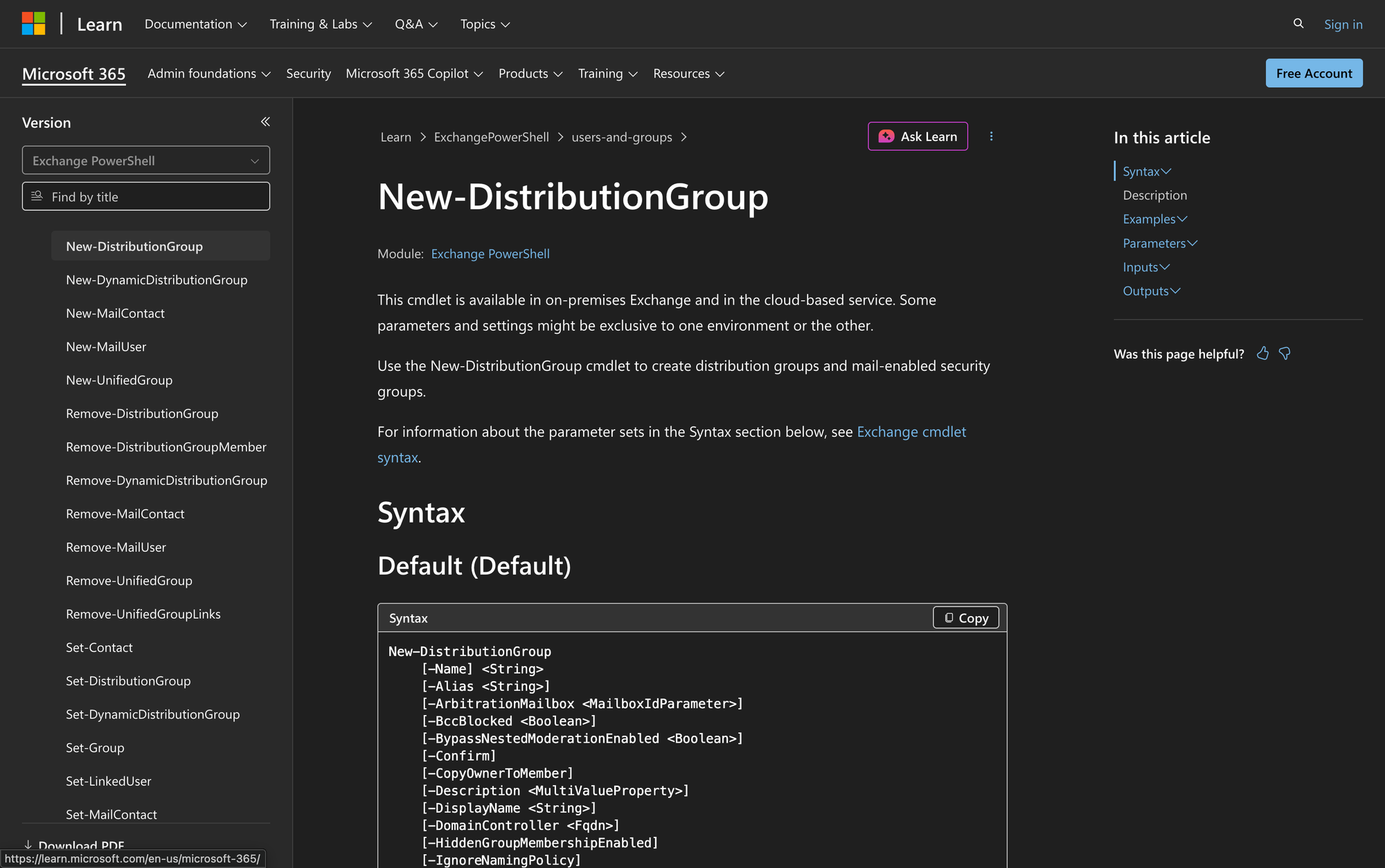
Creating and managing distribution groups in Microsoft Exchange is a fundamental task for administrators. Distribution groups allow for efficient communication within organizations by sending emails to multiple recipients at once.
The New-DistributionGroup cmdlet is a versatile tool in PowerShell that helps create universal distribution groups and mail-enabled universal security groups. This cmdlet is available in both on-premises Exchange and Exchange Online, though some parameters and settings are exclusive to one environment or the other.
Distribution groups, also known as distribution lists, are essential for consolidating multiple recipients into a single contact point, simplifying communication and ensuring that messages reach the intended audience.
Understanding how to effectively utilize the New-DistributionGroup cmdlet can significantly streamline administrative tasks related to group management in Exchange environments.
What is the New-DistributionGroup Cmdlet?
The New-DistributionGroup cmdlet is used to create universal distribution groups and mail-enabled universal security groups in Exchange. These groups serve as collective entities for email communication, allowing messages to be sent to multiple recipients simultaneously.
Distribution groups, however, are not security principals, meaning they cannot be used for assigning permissions. On the other hand, mail-enabled security groups can have permissions assigned to them, making them suitable for scenarios where both communication and security are needed.
After creating a group, you can update its settings with Set-DistributionGroup or add more members later with Add-DistributionGroupMember.
Syntax
The official syntax for the New-DistributionGroup cmdlet is:
New-DistributionGroup
[-Name] <String>
[-Alias <String>]
[-ArbitrationMailbox <MailboxIdParameter>]
[-BccBlocked <Boolean>]
[-BypassNestedModerationEnabled <Boolean>]
[-Confirm]
[-CopyOwnerToMember]
[-Description <MultiValueProperty>]
[-DisplayName <String>]
[-DomainController <Fqdn>]
[-HiddenGroupMembershipEnabled]
[-IgnoreNamingPolicy]
[-ManagedBy <MultiValuedProperty>]
[-MemberDepartRestriction <MemberUpdateType>]
[-MemberJoinRestriction <MemberUpdateType>]
[-Members <MultiValuedProperty>]
[-ModeratedBy <MultiValuedProperty>]
[-ModerationEnabled <Boolean>]
[-Notes <String>]
[-OrganizationalUnit <OrganizationalUnitIdParameter>]
[-PrimarySmtpAddress <SmtpAddress>]
[-RequireSenderAuthenticationEnabled <Boolean>]
[-RoomList]
[-SamAccountName <String>]
[-SendModerationNotifications <TransportModerationNotificationFlags>]
[-Type <GroupType>]
[-WhatIf]
[<CommonParameters>]
Parameters
- Name: Specifies the unique name of the group.
- Alias: Specifies the Exchange alias for the recipient.
- ArbitrationMailbox: Specifies the arbitration mailbox for managing moderation. This parameter is available only in on-premises Exchange.
- BccBlocked: Specifies whether members should not receive messages when the group is used in the Bcc field. This parameter is available only in the cloud-based service.
- BypassNestedModerationEnabled: Specifies handling of message approval for nested moderated groups.
- Confirm: Controls the confirmation prompt.
- CopyOwnerToMember: Includes group owners as members.
- Description: Provides a description for the group. This parameter is available only in the cloud-based service.
- DisplayName: Specifies the display name of the group.
- DomainController: Specifies the domain controller for Active Directory operations. This parameter is available only in on-premises Exchange.
- HiddenGroupMembershipEnabled: Hides group membership from users who aren't members of the group. This parameter is available only in the cloud-based service.
- IgnoreNamingPolicy: Bypasses the organization's naming policy.
- ManagedBy: Specifies the owner of the group.
- MemberDepartRestriction: Controls departure restrictions for group members.
- MemberJoinRestriction: Controls join restrictions for group members.
- Members: Specifies the initial members of the group.
- ModeratedBy: Specifies group moderators.
- ModerationEnabled: Enables or disables moderation for the group.
- Notes: Provides additional information about the group.
- OrganizationalUnit: Specifies the Active Directory location for the group.
- PrimarySmtpAddress: Sets the primary return email address for the group.
- RequireSenderAuthenticationEnabled: Specifies whether to accept messages only from authenticated internal senders.
- RoomList: Specifies that all members of the distribution group are room mailboxes.
- SamAccountName: Specifies a compatible object identifier for older Windows versions. This parameter is available only in on-premises Exchange.
- SendModerationNotifications: Controls moderation notification settings.
- Type: Specifies the type of group: Distribution or Security. Distribution is the default. Security creates a mail-enabled security group. The group scope is always Universal.
- WhatIf: Simulates the command without executing it.
Practical Uses
1. Creating a Distribution Group for a Department
In large organizations, departmental communication is often streamlined through distribution groups. By using New-DistributionGroup, you can create a group for a specific department, such as the IT department, allowing all team members to be contacted at once.
2. Setting Up a Mail-Enabled Security Group
When permissions are required alongside communication capabilities, mail-enabled security groups are ideal. This is useful for teams that need shared access to permission-controlled resources, such as SharePoint sites.
3. Organizing Room Lists for Meeting Scheduling
For organizations with multiple meeting rooms, creating room lists helps in scheduling. Room list distribution groups are used to group room mailboxes by building or location, allowing users to select a building and view availability information for the rooms in that list.
Prerequisites
- Permissions to use the New-DistributionGroup cmdlet.
- Access to Exchange Management Shell (for on-premises) or Exchange Online PowerShell (for Microsoft 365).
- Active directory integration for on-premises environments.
- Proper role assignments, such as Organization Management or Recipient Management.
How to Use New-DistributionGroup: 7 Practical Uses
Creating distribution groups and managing them effectively is vital for smooth communication in any organization. Below are practical examples demonstrating how to use the New-DistributionGroup cmdlet.
1. Create a General Distribution Group
Command:
New-DistributionGroup -Name "General Team" -DisplayName "General Team" -Alias "GeneralTeam"
Creating a general distribution group allows for seamless communication among team members. This group can be used for sending announcements or updates, ensuring that everyone receives the necessary information promptly.
2. Establish a Mail-Enabled Security Group
Command:
New-DistributionGroup -Name "Finance Security" -Type "Security" -ManagedBy "james@meetingroom365.com"
Mail-enabled security groups are suitable when you need to assign permissions. This command creates a mail-enabled universal security group. By adding James as the manager, you make someone responsible for managing the group's settings and membership.
3. Create a Room List for a Building
Command:
New-DistributionGroup -Name "Building A Rooms" -RoomList
Room lists help organize meeting spaces by building or location. This command creates a room list distribution group for Building A. To make the room list useful, add room mailboxes as members after creating the group.
4. Add Initial Members to a Group
Command:
New-DistributionGroup -Name "Marketing Team" -Members james@meetingroom365.com,simon@meetingroom365.com
When setting up a new distribution group, you might want to add initial members directly. This command creates a marketing team group with James and Simon as members, facilitating immediate collaboration.
5. Configure Moderation for Sensitive Groups
Command:
New-DistributionGroup -Name "Executive Board" -ModerationEnabled $true -ModeratedBy james@meetingroom365.com
For sensitive groups like an executive board, enabling moderation ensures that only approved messages are delivered. James, as the moderator, will be responsible for approving messages before they reach the group.
6. Implement Membership Restrictions
Command:
New-DistributionGroup -Name "HR Team" -MemberJoinRestriction "ApprovalRequired"
Setting membership restrictions helps control who can join certain groups. For the HR team, requiring approval for new members ensures that only authorized personnel are included. Although you can use this value on universal security groups, user requests to join the group aren't sent to the group owners, so this setting is only effective on universal distribution groups.
7. Create a Distribution Group with Hidden Membership
Command:
New-DistributionGroup -Name "Confidential Group" -HiddenGroupMembershipEnabled
For groups requiring confidentiality, hiding membership can be useful. This command creates a confidential group where users who aren't members can't view the membership list. This parameter is available only in the cloud-based service. If you create the group with hidden membership, you can't later edit the group to reveal the membership.
Final Note
The New-DistributionGroup cmdlet is an essential tool for managing communication within Exchange environments. Whether you're setting up a distribution list for a department or a mail-enabled security group with specific permissions, this cmdlet offers flexibility and control.
Understanding its parameters and applications can greatly enhance your administrative capabilities in Exchange.