
How to Use New-MailboxFolder in Powershell

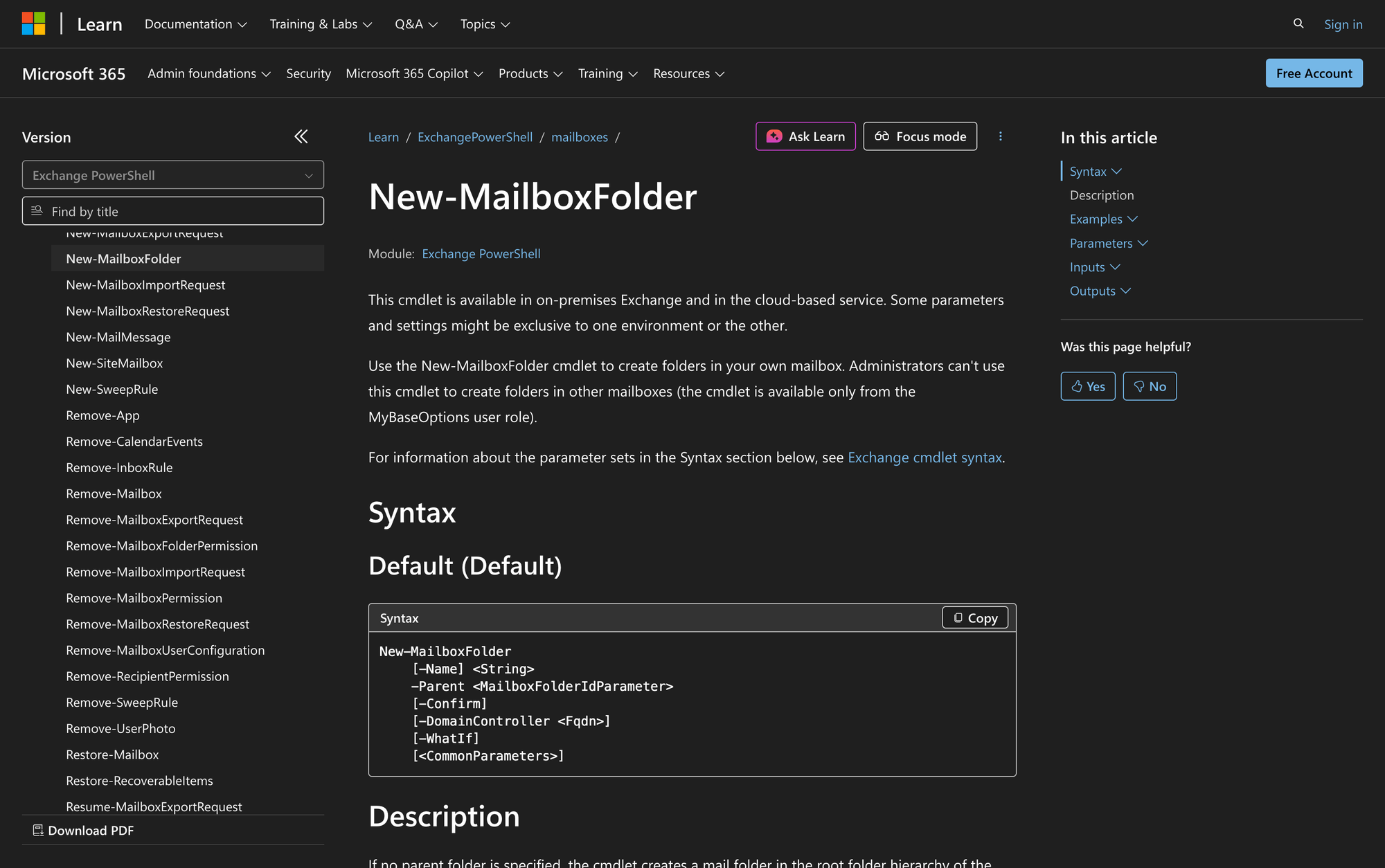
In the world of Microsoft Exchange, users often need to organize their mailbox content effectively to manage emails, documents, and other items. The New-MailboxFolder cmdlet in PowerShell provides a solution for users to create new folders within their own mailboxes, thus enhancing organization and accessibility. This cmdlet is particularly useful for those who handle a significant amount of correspondence and need a structured way to manage it.
The New-MailboxFolder cmdlet is available in both on-premises Exchange environments and Exchange Online, making it versatile for different organizational setups. However, it's important to note that this cmdlet is designed for use by individual users on their own mailboxes only - administrators cannot use this cmdlet to create folders in other users' mailboxes.
This capability is granted through the MyBaseOptions user role, which empowers users to customize their mailbox structures.
What is the New-MailboxFolder Cmdlet?
The New-MailboxFolder cmdlet is a tool used in Exchange PowerShell to create new folders within a user's mailbox. It allows users to define the location and name of the new folder, thereby providing flexibility in how mail is organized.
Whether you're looking to create a new subfolder under your Inbox or a top-level folder in the root hierarchy, this cmdlet caters to your customization needs.
Syntax
New-MailboxFolder
[-Name] <String>
-Parent <MailboxFolderIdParameter>
[-Confirm]
[-DomainController <Fqdn>]
[-WhatIf]
[<CommonParameters>]
If no parent folder is specified, the cmdlet creates a mail folder in the root folder hierarchy of the mailbox.
Parameters
- Name: Specifies the name of the new folder. If the name includes spaces, it should be enclosed in quotation marks ("").
- Parent: Determines where the new mailbox folder will be created. The syntax is [MailboxID]:[ParentFolder][SubFolder]. You can only run this cmdlet on your own mailbox, so you don't need to (or can't) specify a MailboxID value.
- Confirm: Introduces a confirmation prompt before proceeding with the command.
- DomainController: Specifies the domain controller used to read or write data to Active Directory. Applicable only in on-premises Exchange.
- WhatIf: Simulates the command actions without actually applying changes.
Practical Uses
1. Organizing Personal Finance Emails
For individuals who receive numerous emails related to financial matters, creating a dedicated folder for financial correspondence can help maintain order. By using New-MailboxFolder to create a "Finance" folder under the Inbox, users can easily categorize and access all finance-related emails in one place, streamlining their review and response processes.
2. Managing Project Communications
In professional environments, project-based communication is common. Users can employ the New-MailboxFolder cmdlet to set up folders for each project or client under their Inbox. This structure allows them to quickly locate project-specific emails, documents, and communications, facilitating efficient project management and collaboration.
3. Archiving Old Conversations
Users often need a system for archiving older emails to declutter their primary Inbox. By creating an "Archive" folder using New-MailboxFolder, users can move older, less frequently accessed emails to this folder. This keeps the main Inbox clean while still preserving important emails for future reference.
Prerequisites
Before using the New-MailboxFolder cmdlet, ensure the following requirements are met:
- You must have the MyBaseOptions user role assigned.
- Applicable in Exchange Online and on-premises Exchange environments.
- Users can only create folders in their own mailboxes.
How to Use New-MailboxFolder: 7 Practical Uses
The New-MailboxFolder cmdlet is a versatile tool for personal mailbox organization. Below, we explore several practical examples of how users can leverage this cmdlet to enhance their email management.
1. Creating a Personal Folder
Command:
New-MailboxFolder -Parent :Inbox -Name Personal
This command creates a folder named "Personal" under the Inbox. It is useful for users who want to separate personal emails from work-related ones, thereby maintaining a clear distinction between different types of communications. By having a dedicated folder, users can quickly locate personal emails without sifting through work correspondence.
2. Setting Up a Travel Folder
Command:
New-MailboxFolder -Parent : -Name Travel
Creating a "Travel" folder in the root hierarchy allows users to store all travel-related emails, such as itineraries, booking confirmations, and travel advisories. This organization helps users keep track of their travel plans and access necessary information quickly when needed.
3. Establishing a Folder for Meeting Notes
Command:
New-MailboxFolder -Parent :Inbox -Name MeetingNotes
A "MeetingNotes" folder under the Inbox is ideal for storing notes from various meetings. This setup ensures that all meeting-related documents and emails are centralized, making it easier for users to prepare for future meetings and review past discussions.
4. Creating a Folder for Newsletters
Command:
New-MailboxFolder -Parent :Inbox -Name Newsletters
With a "Newsletters" folder, users can redirect all subscription-based content away from their main Inbox. This helps in managing regular updates from different sources without cluttering the primary email view, allowing users to read newsletters at their leisure.
5. Making a Folder for Client Correspondence
Command:
New-MailboxFolder -Parent :Inbox -Name ClientCorrespondence
Users who regularly interact with clients can create a "ClientCorrespondence" folder to house all emails related to client interactions. This helps in tracking client communications and ensures that no important client messages are overlooked.
6. Developing a Folder for HR Communications
Command:
New-MailboxFolder -Parent : -Name HR
An "HR" folder in the root hierarchy is beneficial for storing all human resources-related emails. This includes company policies, employee benefits information, and HR announcements, providing users with easy access to important HR documents.
7. Organizing Educational Materials
Command:
New-MailboxFolder -Parent :Inbox -Name Courses
For users engaged in continual learning or professional development, a "Courses" folder under the Inbox can keep all educational materials organized. This facilitates easy retrieval of course-related emails and materials, ensuring that learning resources are always accessible.
Final Note
The New-MailboxFolder cmdlet is a valuable tool for users seeking to enhance the organization of their mailboxes. By allowing users to create custom folders, it supports efficient email management and organization. Whether it's categorizing personal, project, or client emails, this cmdlet provides the flexibility needed to tailor a mailbox to individual preferences and needs.