
How to Use Set-RoleGroup in Powershell

In the complex landscape of Exchange Server and Exchange Online, managing permissions is a critical task for maintaining a secure and organized environment. Microsoft utilizes Role Based Access Control (RBAC) to delegate authority, allowing administrators to assign granular permissions to users without giving them full administrative rights.
The role group is a fundamental component of this model. It acts as a container that links administrators (members) to specific roles (permissions).
While you might create groups frequently during the initial setup, the day-to-day maintenance often involves updating these existing entities - changing a description, updating the manager, or renaming the group to reflect a new organizational structure.
This is where the Set-RoleGroup cmdlet becomes an essential tool in your PowerShell arsenal.
What is the Set-RoleGroup Cmdlet?
The Set-RoleGroup cmdlet is a command used in the Exchange Management Shell and Exchange Online PowerShell to modify the properties of an existing management role group.
Unlike cmdlets used for membership management (such as Add-RoleGroupMember), Set-RoleGroup modifies the properties of an existing role group - for example, updating its description, display name, internal Name, or ManagedBy list. It is important to note that this cmdlet does not add or remove members or role assignments. assignments.
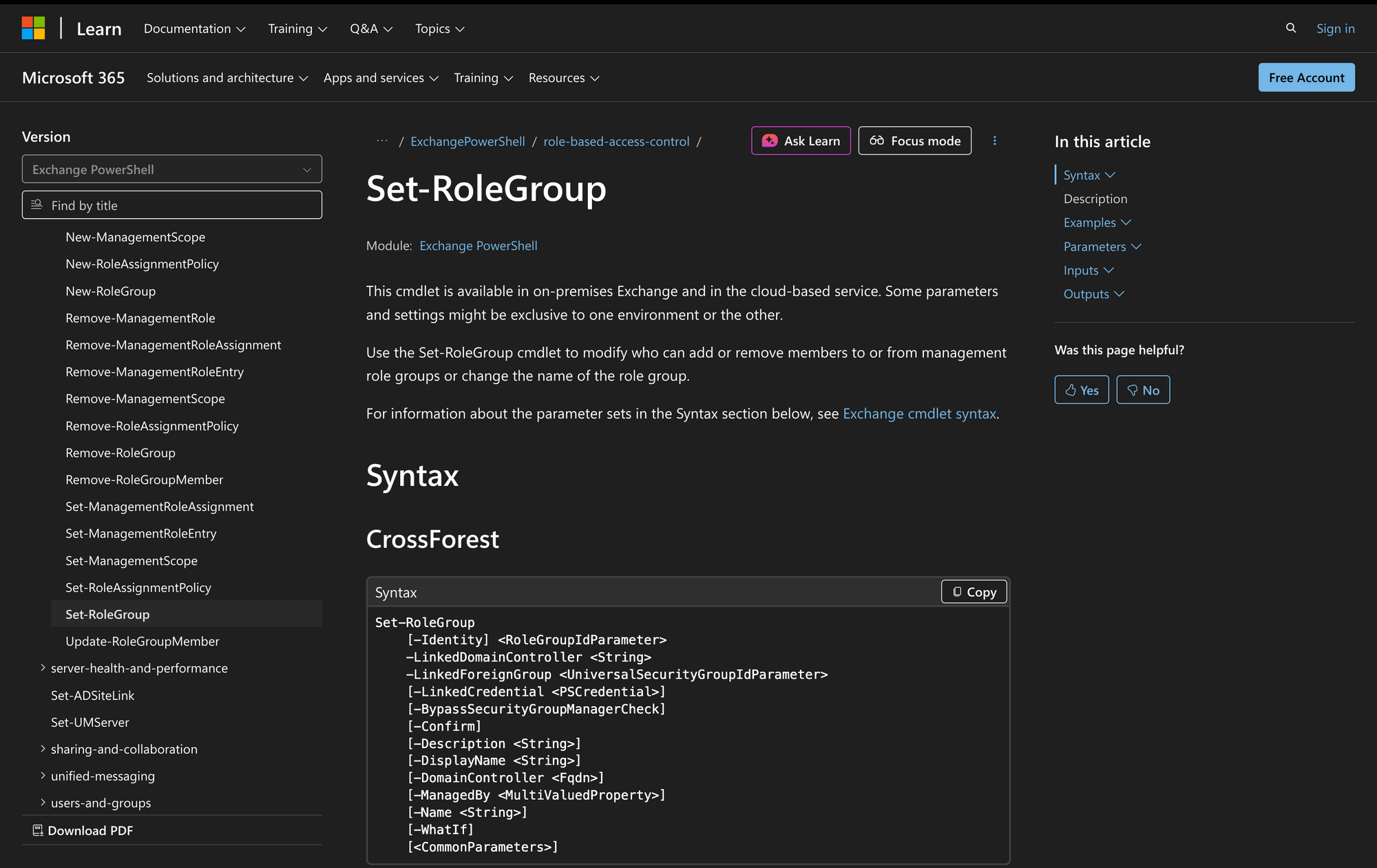
Syntax
Set-RoleGroup
[-Identity] <RoleGroupIdParameter>
[-BypassSecurityGroupManagerCheck]
[-Confirm]
[-Description <String>]
[-DisplayName <String>]
[-DomainController <Fqdn>]
[-Force]
[-ManagedBy <MultiValuedProperty>]
[-Name <String>]
[-WhatIf]
[<CommonParameters>]
Parameters
- Identity: Specifies the name of the role group you want to modify; if the name contains spaces, enclose it in quotation marks.
- ManagedBy: Replaces the list of users or groups (delegates) who are allowed to modify the membership of this role group.
- Description: Updates the text description of the group, which is visible when running Get-RoleGroup.
- DisplayName: Sets a new friendly name for the group, often used to make the group purpose clearer in the Exchange admin center.
- Name: Changes the unique name of the role group object within the system.
- BypassSecurityGroupManagerCheck: Allows an administrator with the Role Management role (like Organization Management) to modify a group even if they are not listed in the ManagedBy property.
- Force: A switch available only in cloud-based environments (Exchange Online) that hides warning or confirmation prompts.
- Confirm: Pauses the command execution and forces you to acknowledge the action before proceeding.
- WhatIf: Simulates the command to show you what changes would occur without actually applying them.
Key Differences
It is helpful to distinguish Set-RoleGroup from other related cmdlets to ensure you are selecting the right tool for the job.
Practical Uses
Understanding when to utilize the Set-RoleGroup cmdlet is just as important as knowing the syntax. In a live Exchange Server or Exchange Online environment, administrators rarely create new permission structures from scratch every day. Instead, the bulk of the work involves maintaining and refining existing access controls. Here are three common real-world scenarios where this cmdlet is indispensable.
1. Delegating Administration to Team Leads
In large organizations, the central IT department often creates the initial role groups, such as "Sales Management" or "Help Desk." However, they do not want to be responsible for every minor membership change, such as adding a new hire or removing a departing employee.
By using Set-RoleGroup to modify the ManagedBy property, a global administrator can delegate the authority to manage the group's membership to a specific user, like a team lead in the Sales Operations Team. This allows the team lead to add or remove their own staff from the group without needing full administrative rights over the entire Exchange organization.
2. Rebranding and Organizational Restructuring
Companies frequently undergo restructuring or rebranding. A department formerly known as "Pacific NW Admins" might be merged into a larger logical collection known as "West Coast Ops."
If you have an established Role group with complex Role Assignment configurations and CustomRecipientWriteScope settings already in place, it is inefficient to delete it and start over. Instead, administrators use Set-RoleGroup to update the DisplayName and Name of the group.
This preserves all the underlying security identifiers (SIDs) and permissions while ensuring the Exchange admin center reflects the current organizational terminology.
3. Enforcing Audit Trails and Descriptions
Security audits often flag administrative groups that lack clear documentation. If a Role group is named "Special Project X" with no description, a new administrator might inadvertently add the wrong users to it, granting excessive permissions.
To mitigate this risk, IT teams use Set-RoleGroup to enforce a naming convention and populate the Description field with vital data, such as the ticket number authorizing the group's creation, the owner's contact info, or the specific system privilege level granted.
This ensures that anyone viewing the group via Get-RoleGroup immediately understands its purpose and scope.
Prerequisites
Before running the Set-RoleGroup cmdlet, ensure your environment and account meet the necessary requirements. Without these, you may encounter error messages regarding access or missing parameters.
- Permissions: You must be assigned the Role Management role. By default, this role is assigned to the Organization Management role group.
- Ownership: If the ManagedBy property is already populated on a group, you must be listed as a manager of that group to modify it, unless you use specific bypass switches.
- Environment: This cmdlet works in on-premises Exchange Server (2010 and later) and Exchange Online(including Exchange Online Protection).
- PowerShell Access: You need access to the Exchange Management Shell (on-premises) or a connected Exchange Online PowerShell session.
- Object Existence: The role group you intend to modify must already exist in the Active Directory (for on-prem) or the cloud directory.
How to Use Set-RoleGroup
This section provides step-by-step walkthroughs for common administrative tasks. We will focus on modifying existing groups to suit changing business needs.
1. Assigning Managers to a Role Group
One of the most frequent tasks is updating the ManagedBy list. This property defines who can add or remove members from the group. It is important to note that adding someone to the ManagedBy list does not give them the permissions the role group holds; it only gives them the right to manage the group's membership (the Members list).
In this example, we will assign James (james@meetingroom365.com) as the manager of the "Seattle Admins" group. This is a common delegation scenario.
Step 1: Verify the current managers. Before making changes, it is good practice to see who currently manages the group to avoid accidentally removing someone important.
Get-RoleGroup "Seattle Admins" | Format-List ManagedBy
Step 2: Set the new manager. Run the Set-RoleGroup command to replace the current manager list with James. Note that this command replaces the existing list.
Set-RoleGroup "Seattle Admins" -ManagedBy "james@meetingroom365.com"
Step 3: Adding multiple managers. If you need both James and Simon (simon@meetingroom365.com) to manage the group, you must list them both. If you simply run the command again with just Simon, James will be removed.
Set-RoleGroup "Seattle Admins" -ManagedBy "james@meetingroom365.com", "simon@meetingroom365.com"
2. Overriding Manager Checks with the Bypass Switch
A common issue administrators face is the "access denied" error when trying to modify a group they created but do not technically "manage" via the ManagedBy attribute. This often happens to members of the Organization Management group who are trying to clean up old groups owned by former employees.
The BypassSecurityGroupManagerCheck switch allows a highly privileged administrator (like an Org Admin) to overwrite settings on a group even if they are not listed as a manager.
Step 1: Attempting the modification (and failing). If James tries to modify the "Compliance Support" group but is not in the ManagedBy list, the system will reject the request.
Step 2: Using the Bypass switch. James can force the change by appending the switch. In this example, James is updating the description of the group.
Set-RoleGroup "Compliance Support" -Description "Updated by James for Q4 Audit" -BypassSecurityGroupManagerCheck
This SwitchParameter is crucial when you are taking over "orphan" groups where the previous manager account has been deleted from Active Directory.
3. Renaming Role Groups
When internal naming conventions change, you should update the Role group names to match. There are two name parameters: Name (the internal system name) and DisplayName (what users see in the Exchange admin center). It is usually best practice to keep these consistent to avoid confusion.
In this scenario, the "Help Desk" group needs to be renamed to "Tier 1 Support" to align with new IT policies.
Step 1: Change the Display Name. This changes how the group appears in the address book and GUI lists.
Set-RoleGroup "Help Desk" -DisplayName "Tier 1 Support"
Step 2: Change the internal Name. This updates the underlying object name. Note: Once you change the identity (Name), you must use the new name for any future commands.
Set-RoleGroup "Help Desk" -Name "Tier 1 Support"
4. Clearing the Manager List
Sometimes you want to revert a group so that it is managed solely by the organization administrators rather than specific delegates. This is effectively "resetting" the ManagedBy property.
Command:
Set-RoleGroup "Tier 1 Support" -ManagedBy "Organization Management"
To remove or overwrite the existing ManagedBy list, you must explicitly supply a new list. Microsoft’s documentation does not provide a direct example for clearing the property to empty. Test in your environment, or overwrite with the Organization Management group if needed. However, a strict clear often involves setting it to a default admin account or the user running the script if null is rejected.
A common approach to "reset" it so no specific user has exclusive control (reverting to default Organization Management control behavior) is to assign it to the Organization Management group itself or the account of the head administrator.
5. Working with Linked Role Groups
For organizations using a resource forest topology, you might deal with Linked Role Groups. These are groups where the permissions exist in the Exchange forest, but the members are defined in a foreign Active Directory forest.
Command:
Set-RoleGroup -Identity <roleGroup> -LinkedDomainController <FQDN> -LinkedForeignGroup <USG> [-LinkedCredential <PSCredential>]
Update the Linked Foreign Group. If the security group in the foreign forest has changed, you need to update the link. Suppose the foreign group changed from "US-Admins" to "Global-Admins".
Conclusion
The Set-RoleGroup cmdlet is the primary mechanism for maintaining the metadata and management structure of your RBAC model. While it does not assign permissions or add members directly, it controls the "who, what, and how" of the group itself.
By mastering parameters like ManagedBy and BypassSecurityGroupManagerCheck, and understanding the distinction between Name and DisplayName, you ensure that your Exchange authorization framework remains secure, accurate, and aligned with your organization's hierarchy.Whether you are fixing a description for a Help Deskaudit or transferring ownership of a Sales Management group to James and Simon, this cmdlet ensures your governance policies are effectively enforced.