
How to Use Set-DynamicDistributionGroup in PowerShell

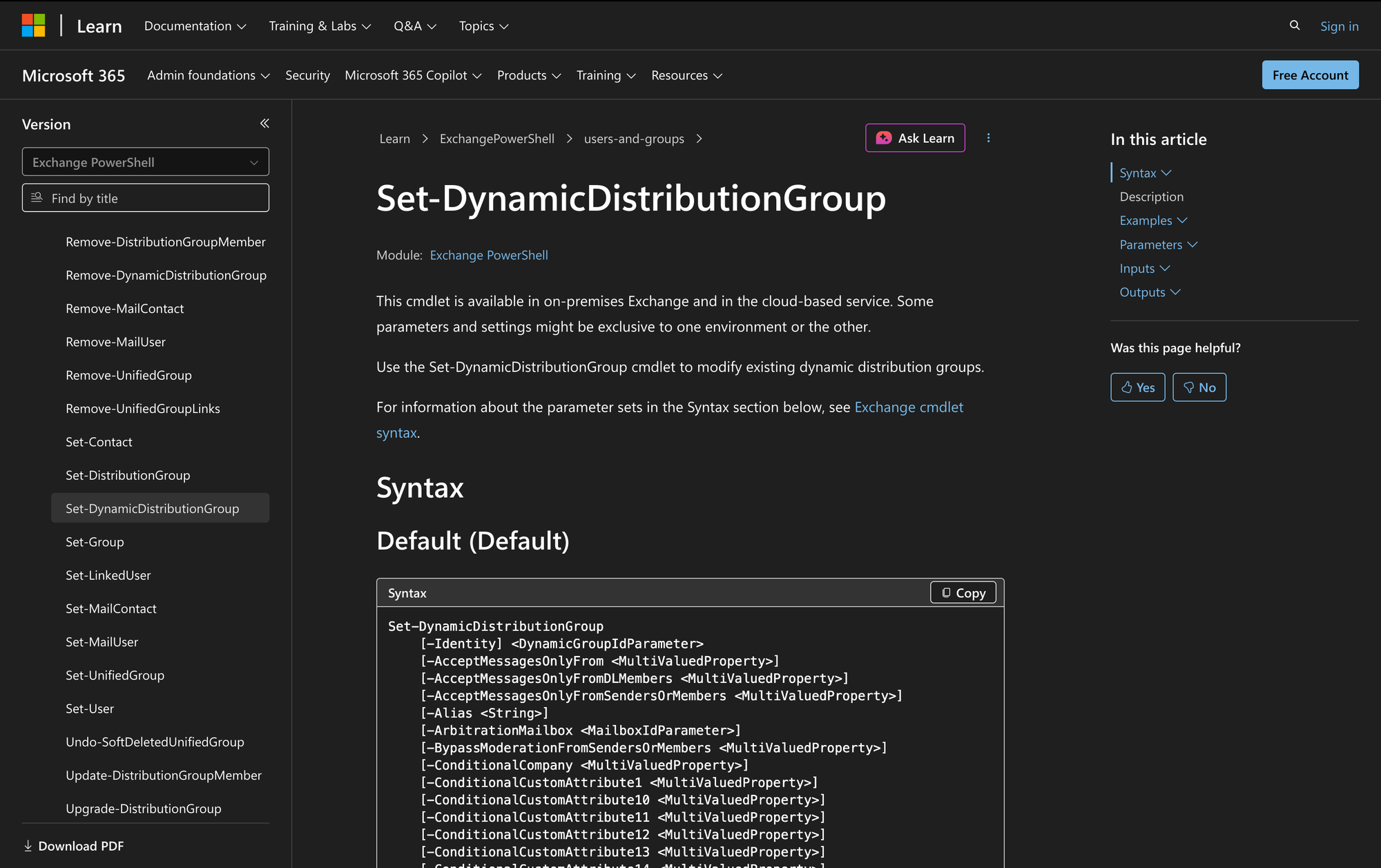
Setting up and managing dynamic distribution groups can greatly enhance how communication is structured within an organization using Microsoft Exchange. These groups automatically include members based on defined filters, making them efficient for sending emails to a large, fluid list of recipients without manual updates.
For administrators, the Set-DynamicDistributionGroup cmdlet is essential for modifying these dynamic distribution groups, adapting them to meet the evolving needs of the organization.
Whether it's updating membership criteria or adjusting settings, mastering this cmdlet will streamline your Exchange management tasks.
What is the Set-DynamicDistributionGroup Cmdlet?
The Set-DynamicDistributionGroup cmdlet is a tool used to modify existing dynamic distribution groups in both on-premises Exchange Server and Exchange Online. Dynamic distribution groups are unique in that their membership is calculated based on specific attributes or filters rather than static lists.
This means that whenever an email is sent to the group, the membership is recalculated to include all users who meet the specified criteria at that time. This cmdlet allows administrators to update these criteria or alter other settings related to the group.
If you also need to manage who can send as a recipient or group, see our guide on Add-RecipientPermission in PowerShell, which covers assigning recipient-level permissions such as Send As in Exchange Online.
Syntax
Here’s the syntax from official Microsoft source:
Set-DynamicDistributionGroup
[-Identity] <DynamicGroupIdParameter>
[-AcceptMessagesOnlyFrom <MultiValuedProperty>]
[-AcceptMessagesOnlyFromDLMembers <MultiValuedProperty>]
[-AcceptMessagesOnlyFromSendersOrMembers <MultiValuedProperty>]
[-Alias <String>]
[-ArbitrationMailbox <MailboxIdParameter>]
[-BypassModerationFromSendersOrMembers <MultiValuedProperty>]
[-ConditionalCompany <MultiValuedProperty>]
[-ConditionalCustomAttribute1 <MultiValuedProperty>]
[-ConditionalCustomAttribute10 <MultiValuedProperty>]
[-ConditionalCustomAttribute11 <MultiValuedProperty>]
[-ConditionalCustomAttribute12 <MultiValuedProperty>]
[-ConditionalCustomAttribute13 <MultiValuedProperty>]
[-ConditionalCustomAttribute14 <MultiValuedProperty>]
[-ConditionalCustomAttribute15 <MultiValuedProperty>]
[-ConditionalCustomAttribute2 <MultiValuedProperty>]
[-ConditionalCustomAttribute3 <MultiValuedProperty>]
[-ConditionalCustomAttribute4 <MultiValuedProperty>]
[-ConditionalCustomAttribute5 <MultiValuedProperty>]
[-ConditionalCustomAttribute6 <MultiValuedProperty>]
[-ConditionalCustomAttribute7 <MultiValuedProperty>]
[-ConditionalCustomAttribute8 <MultiValuedProperty>]
[-ConditionalCustomAttribute9 <MultiValuedProperty>]
[-ConditionalDepartment <MultiValuedProperty>]
[-ConditionalStateOrProvince <MultiValuedProperty>]
[-Confirm]
[-CreateDTMFMap <Boolean>]
[-CustomAttribute1 <String>]
[-CustomAttribute10 <String>]
[-CustomAttribute11 <String>]
[-CustomAttribute12 <String>]
[-CustomAttribute13 <String>]
[-CustomAttribute14 <String>]
[-CustomAttribute15 <String>]
[-CustomAttribute2 <String>]
[-CustomAttribute3 <String>]
[-CustomAttribute4 <String>]
[-CustomAttribute5 <String>]
[-CustomAttribute6 <String>]
[-CustomAttribute7 <String>]
[-CustomAttribute8 <String>]
[-CustomAttribute9 <String>]
[-DirectMembershipOnly <Boolean>]
[-DisplayName <String>]
[-DomainController <Fqdn>]
[-EmailAddresses <ProxyAddressCollection>]
[-EmailAddressPolicyEnabled <Boolean>]
[-ExpansionServer <String>]
[-ExtensionCustomAttribute1 <MultiValuedProperty>]
[-ExtensionCustomAttribute2 <MultiValuedProperty>]
[-ExtensionCustomAttribute3 <MultiValuedProperty>]
[-ExtensionCustomAttribute4 <MultiValuedProperty>]
[-ExtensionCustomAttribute5 <MultiValuedProperty>]
[-ForceMembershipRefresh]
[-ForceUpgrade]
[-GrantSendOnBehalfTo <MultiValuedProperty>]
[-HiddenFromAddressListsEnabled <Boolean>]
[-IgnoreDefaultScope]
[-IncludedRecipients <WellKnownRecipientType>]
[-MailTip <String>]
[-MailTipTranslations <MultiValuedProperty>]
[-ManagedBy <GeneralRecipientIdParameter>]
[-MaxReceiveSize <Unlimited>]
[-MaxSendSize <Unlimited>]
[-ModeratedBy <MultiValuedProperty>]
[-ModerationEnabled <Boolean>]
[-Name <String>]
[-Notes <String>]
[-PhoneticDisplayName <String>]
[-PrimarySmtpAddress <SmtpAddress>]
[-RecipientContainer <OrganizationalUnitIdParameter>]
[-RecipientFilter <String>]
[-RejectMessagesFrom <MultiValuedProperty>]
[-RejectMessagesFromDLMembers <MultiValuedProperty>]
[-RejectMessagesFromSendersOrMembers <MultiValuedProperty>]
[-ReportToManagerEnabled <Boolean>]
[-ReportToOriginatorEnabled <Boolean>]
[-RequireSenderAuthenticationEnabled <Boolean>]
[-SendModerationNotifications <TransportModerationNotificationFlags>]
[-SendOofMessageToOriginatorEnabled <Boolean>]
[-SimpleDisplayName <String>]
[-UMDtmfMap <MultiValuedProperty>]
[-UpdateMemberCount]
[-WhatIf]
[-WindowsEmailAddress <SmtpAddress>]
[<CommonParameters>]
Primary parameters
- Identity - Specifies the dynamic distribution group to modify by name, DN, or GUID.
- AcceptMessagesOnlyFrom - Restricts who can send messages to the distribution group.
- Alias - Sets the mail nickname for the distribution group.
- RecipientFilter - Specifies or modifies a custom OPATH filter for membership. You can't use this cmdlet to replace a precanned filter with a custom OPATH filter, or replace a custom OPATH filter with a precanned filter.
- ManagedBy - Sets the users who manage the distribution group.
- ModerationEnabled - Enables or disables message moderation for the group.
- PrimarySmtpAddress - Sets the primary SMTP address for the group.
- ConditionalCompany - Applies a filter based on the company attribute.
- MaxReceiveSize - Limits the size of messages that can be received by the group.
- Confirm - Controls whether to show a confirmation prompt.
- EmailAddresses - Manages the proxy addresses associated with the group.
Practical Uses
1. Updating Membership Criteria for a Sales Team
In a dynamic corporate environment, sales teams often change. Using the Set-DynamicDistributionGroup, administrators can modify the membership criteria to include new team members based on department changes.
By adjusting filters using parameters like ConditionalDepartment, the distribution group will automatically update to reflect current team members every time an email is sent to the group.
2. Enabling Moderation for Sensitive Communication
For departments dealing with sensitive information, such as finance or legal, message moderation might be necessary. The ModerationEnabled parameter allows administrators to enable this feature, ensuring messages sent to the group are reviewed by designated moderators before delivery.
This is particularly useful for maintaining confidentiality and ensuring compliance with organizational policies.
3. Updating Group Email Addresses
Organizations often have specific email address formats. By using parameters such as Alias, PrimarySmtpAddress, and EmailAddresses, administrators can update how the dynamic distribution group is addressed.
In on-premises Exchange environments, email address policies may control these addresses unless policy-based updates are disabled for the group.
Prerequisites
Before using the Set-DynamicDistributionGroup cmdlet, the following conditions must be met:
- You must have the necessary permissions in Exchange Online or Exchange Server.
- The cmdlet is available in:
- Exchange Server 2010, 2013, 2016, 2019, and Exchange Server SE
- Exchange Online
- The Exchange Management Shell or Exchange Online PowerShell module must be used for execution.
How to Use Set-DynamicDistributionGroup: 7 Practical Uses
This section covers practical examples of how the Set-DynamicDistributionGroup cmdlet can be used to manage dynamic distribution groups within an Exchange environment. These examples demonstrate real-world scenarios where this cmdlet proves beneficial.
1. Restricting Message Senders
Command:
Set-DynamicDistributionGroup -Identity "Marketing" -AcceptMessagesOnlyFrom james@meetingroom365.com
This command restricts message sending to the "Marketing" group, allowing only James from the specified email address to send emails. This is useful for controlling communication within sensitive or high-priority groups.
2. Changing Display Name
Command:
Set-DynamicDistributionGroup -Identity "Developers" -DisplayName "Dev Team"
Updating the display name of a dynamic group can help clarify its purpose or membership. In this example, changing the display name to "Dev Team" makes it clear to users what the group represents.
3. Enabling Message Moderation
Command:
Set-DynamicDistributionGroup -Identity "Finance" -ModerationEnabled $true -ModeratedBy simon@meetingroom365.com
Enabling moderation ensures that messages sent to the "Finance" group are reviewed by Simon before distribution. This is critical in environments where message content needs to meet compliance standards before delivery.
4. Adjusting Membership Filters
Command:
Set-DynamicDistributionGroup -Identity "All Staff" -RecipientFilter "RecipientType -eq 'UserMailbox'"
This example modifies the custom OPATH membership filter for the "All Staff" group to include only user mailboxes. This works when the dynamic distribution group already uses a custom recipient filter. You can't use Set-DynamicDistributionGroup to replace a precanned filter with a custom OPATH filter, or replace a custom OPATH filter with a precanned filter.
5. Updating Primary SMTP Address
Command:
Set-DynamicDistributionGroup -Identity "HR" -PrimarySmtpAddress hr@company.com
Changing the primary SMTP address for a group can help standardize email communications. You can't use PrimarySmtpAddress and EmailAddresses in the same command. In on-premises Exchange environments where email address policies are enabled for the group, you may need to disable policy-based address updates before setting the primary SMTP address manually.
6. Managing Proxy Addresses
Command:
Set-DynamicDistributionGroup -Identity "Support" -EmailAddresses @{Add="smtp:support@company.com"}
Adding a proxy address to a dynamic group ensures that emails sent to multiple addresses reach the intended recipients. The @{Add=...} syntax adds the address without replacing existing proxy addresses.
7. Setting Custom Attributes
Command:
Set-DynamicDistributionGroup -Identity "Research" -CustomAttribute1 "ProjectX"
Using custom attributes can help categorize and filter groups based on specific projects or initiatives. This example tags the "Research" group with a custom attribute for "ProjectX", aiding in organization and filtering.
Final Note
The Set-DynamicDistributionGroup cmdlet is useful for administrators managing dynamic distribution groups. It can update group settings, delivery restrictions, moderation settings, email addresses, custom attributes, and existing membership filters.
For membership changes, pay close attention to whether the group uses precanned filters or a custom OPATH filter, because this cmdlet can modify the existing filter type but can't switch between the two.