
How to Use Get-MgUserPhotoContent in PowerShell

In Microsoft 365, Microsoft Entra ID (formerly Azure AD), and Office365 environments, profile photos are a core part of user identity. Profile pictures appear across Outlook, Microsoft Teams, SharePoint, and other Microsoft applications, helping users quickly recognize accounts and improving communication. As organizations scale, managing user photosbecomes a recurring administrative task, especially for onboarding, offboarding, audits, and integrations with external systems such as HRIS platforms.
From a user profile management perspective, administrators often need a reliable way to retrieve photo data, cache photos locally, or feed them into other systems. This is where Microsoft Graph and PowerShell scripting intersect.
The Get-MgUserPhotoContent cmdlet, part of Microsoft Graph PowerShell, allows administrators and automation scripts to retrieve binary photo content directly from a user account using the Microsoft Graph API. It is commonly used in automation, scheduled tasks, and bulk operations involving All Users or specific groups. This article explains what the cmdlet does, how it works, its parameters, and when to use it correctly.
What is the Get-MgUserPhotoContent Cmdlet?
The Get-MgUserPhotoContent cmdlet retrieves the raw photo Content (binary image data) of a specific user’s profile picture from Microsoft Graph. It is a read-only PowerShell cmdlet, meaning it can only download photo data and cannot modify or upload user photos. The cmdlet writes the retrieved photo directly to a File using the -OutFile parameter and does not return a PowerShell object.
This cmdlet is part of the Microsoft.Graph.Users Module, one of the core modules in Microsoft Graph PowerShell Cmdlets published by Microsoft Corporation. Internally, it calls the Microsoft Graph REST API endpoint /users/{id}/photo/$value, making it suitable for low-level automation and integration scenarios.
Syntax
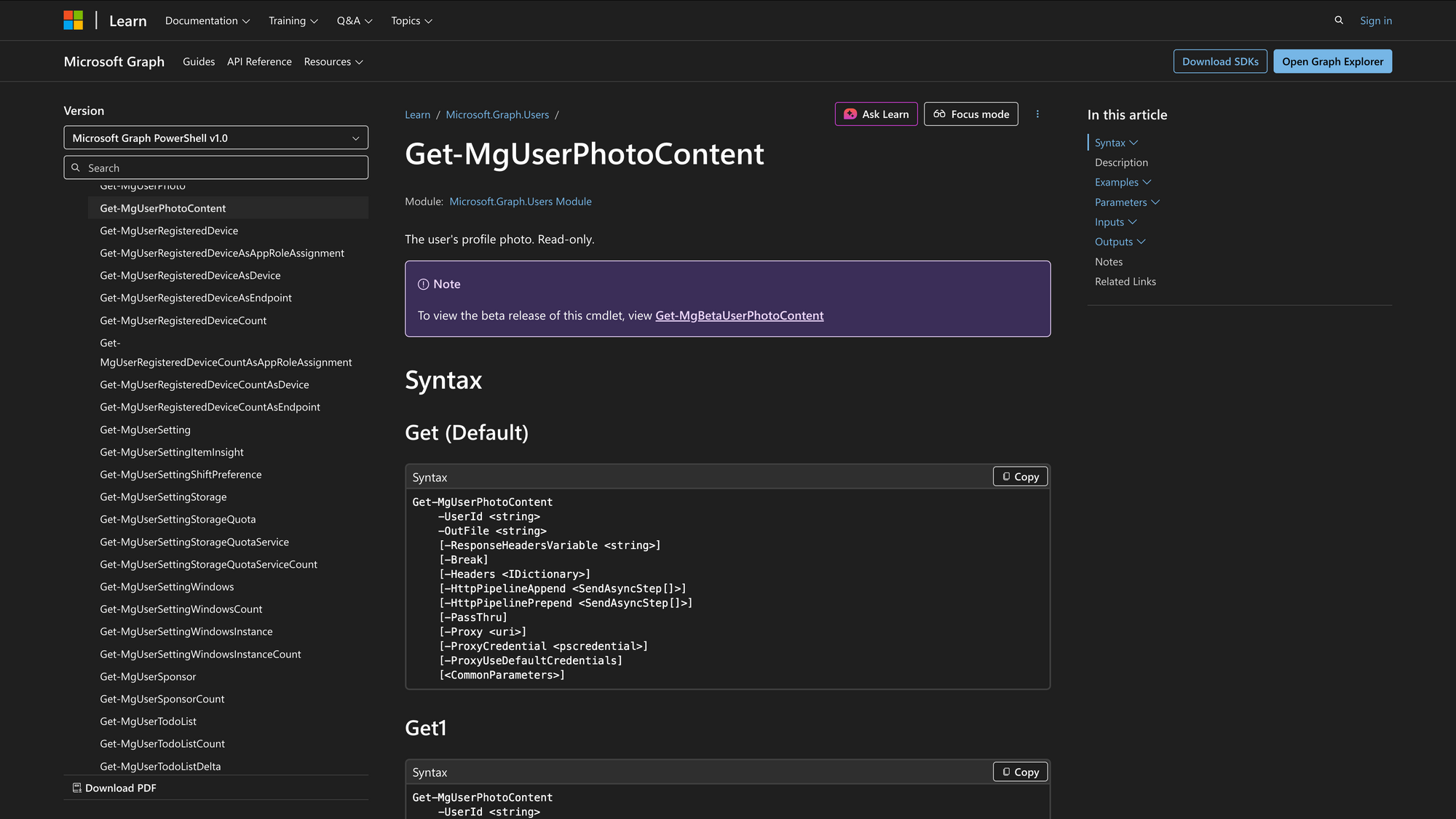
Below is the official syntax as defined in Microsoft documentation:
Get-MgUserPhotoContent
-UserId <string>
-OutFile <string>
[-ResponseHeadersVariable <string>]
[-Break]
[-Headers <IDictionary>]
[-HttpPipelineAppend <SendAsyncStep[]>]
[-HttpPipelinePrepend <SendAsyncStep[]>]
[-PassThru]
[-Proxy <uri>]
[-ProxyCredential <pscredential>]
[-ProxyUseDefaultCredentials]
[<CommonParameters>]
Note: While the ProfilePhotoId parameter exists, Microsoft Graph currently supports only one profile photo per user, typically with an ID value of "1".
Parameters
- UserId: The Identity parameter for the user object. This can be the object ID or the UserPrincipalName (UPN) of the user account.
- OutFile: Required. Specifies the file path where the downloaded photo data will be written (for example, C:tempUserPhoto.jpg).
- ProfilePhotoId: The identifier of the profile photo. In practice, Microsoft Graph exposes a single profile photo per user.
- ResponseHeadersVariable: Stores Response Headers from the Microsoft Graph API call in a variable for diagnostics or troubleshooting.
- Break: Pauses execution and waits for a .NET debugger to attach. Mainly used for advanced debugging.
- Headers: Allows custom HTTP headers to be added to the underlying REST API request.
- HttpPipelineAppend / HttpPipelinePrepend: Advanced parameters used internally by the MS Graph PowerShell SDK for request pipeline customization.
- PassThru: Returns True if the API call succeeds.
- Proxy / ProxyCredential / ProxyUseDefaultCredentials: Used when the PowerShell session must route Microsoft Graph traffic through a proxy server.
Practical Uses
Common use cases include exporting user photos for backups, validating whether an AD account has a profile picture, feeding photo data into internal systems, or supporting identity synchronization workflows across Microsoft Entra ID, Exchange Online, and third-party platforms.
Retrieving User Profile Photos for Auditing
Administrators often need to verify whether user accounts have valid profile photos assigned, especially during onboarding or directory cleanup initiatives. By combining Get-MgUser with Get-MgUserPhotoContent, PowerShell scripts can systematically attempt to retrieve photo content for each user object. Failed API calls typically indicate missing profile pictures or authorization issues. This approach supports compliance checks and visual identity consistency across Microsoft 365.
Exporting User Photos for Backup
Organizations frequently back up user photos as part of tenant migrations, disaster recovery planning, or HR compliance workflows. Get-MgUserPhotoContent enables bulk export of profile pictures to the file system, where they can be archived, hashed, or compared later. This task is commonly automated using PowerShell scripting and scheduled tasks. Because the cmdlet returns only binary content, file naming and error handling must be implemented explicitly.
Integrating User Photos into Custom Applications
Custom internal applications often require access to profile photos stored in Microsoft Entra ID. Using Microsoft Graph PowerShell or the underlying REST API, administrators can pull photo data and pass it to other systems as files or base64 strings. Get-MgUserPhotoContent is particularly useful during development and testing phases before moving to direct REST API calls. This supports consistent user identity representation across internal tools.
Prerequisites
Before using Get-MgUserPhotoContent, ensure the following prerequisites are met:
- Microsoft Graph PowerShell is installed and the Microsoft.Graph.Users Module is available.
- You are authenticated using Connect-MgGraph.
- The application or signed-in user has one of the following permissions:
Delegated permissions
- User.Read
- User.Read.All
Application permissions
- User.Read.All
- The PowerShell environment supports Microsoft Graph PowerShell cmdlets (Windows PowerShell or PowerShell 7+).
Incorrect or missing permissions will result in authorization errors from the Microsoft Graph API.
How to Use Get-MgUserPhotoContent: 6 Practical Uses
The Get-MgUserPhotoContent cmdlet can be employed in various scenarios, making it a versatile tool for administrators. Below are practical examples of how to use this cmdlet effectively.
1. Download a User’s Profile Photo to a File
Command:
Get-MgUserPhotoContent -UserId "james@meetingroom365.com" -OutFile "C:tempJamesProfilePhoto.jpg"
This PowerShell cmdlet retrieves the profile photo Content for a single Microsoft 365 user and writes the binary photo data directly to a File. Get-MgUserPhotoContent performs a Microsoft Graph API call to the user photo endpoint and does not return a PowerShell object, which is why -OutFile is required.
This pattern is commonly used for profile management, manual audits, or exporting user photos for downstream systems. The command requires valid Delegated or Application permissions and a successfully authenticated Microsoft Graph PowerShell session. If the user has no profile picture, the API call returns an error that should be handled explicitly in scripts.
2. Retrieve a Profile Photo Using UserPrincipalName
Command:
Get-MgUserPhotoContent -UserId "james@meetingroom365.com" -OutFile "C:tempJamesUPNPhoto.jpg"
Using UserPrincipalName as the identity parameter makes PowerShell scripts easier to read and maintain, especially when working with data from Microsoft Entra ID, Exchange Online, or HR systems. Microsoft Graph resolves the UPN to the underlying user object automatically, so the API behavior is identical to using an object ID.
This approach is especially useful when processing a CSV file containing user accounts or when automating profile photo retrieval across Microsoft 365. Be aware that UPNs can change, which may impact long-running automation. Proper error handling is recommended to detect renamed or deleted accounts.
3. Retrieve a Profile Photo Using the User Object ID
Command:
Get-MgUserPhotoContent -UserId "12345678-1234-1234-1234-123456789abc" -OutFile "C:tempSpecificUserPhoto.jpg"
Using the user object ID is the most reliable method when automating against Microsoft Graph, as object IDs never change. This is the preferred approach for scheduled tasks, background services, or Application-based authentication using a client secret or certificate.
It avoids failures caused by renamed UserPrincipalName values or account changes in Microsoft Entra ID. This method is recommended when accuracy matters more than readability. Permissions and authorization behavior remain identical to UPN-based calls.
4. Capture Response Headers for Diagnostics
Command:
$responseHeaders = "" Get-MgUserPhotoContent -UserId "simon@meetingroom365.com" -OutFile "C:tempSimonPhoto.jpg" ` -ResponseHeadersVariable responseHeadersThis example captures Response Headers returned by the Microsoft Graph API call, which can be useful for diagnostics and troubleshooting. Headers may include request IDs, throttling indicators, or metadata useful during support escalation or debugging.
This pattern is helpful when validating authorization behavior or investigating unexpected failures in automation. It does not affect the photo download itself and adds minimal overhead. Most administrators use this only during development or incident analysis.
5. Download a Profile Photo Through a Proxy Server
Command:
Get-MgUserPhotoContent -UserId "james@meetingroom365.com" -OutFile "C:tempJamesPhoto.jpg" -Proxy "http://proxyserver:8080" -ProxyCredential (Get-Credential)This command is required in environments where outbound Microsoft Graph traffic must pass through a proxy server. The proxy configuration applies only to this API call and does not alter the global PowerShell session.
Proxy credentials are typically stored securely and injected at runtime in automation scenarios. This setup is common in locked-down corporate networks or on-premises Windows PowerShell systems. Authentication and permissions behavior remain unchanged.
Final Note
In conclusion, the Get-MgUserPhotoContent cmdlet is an essential tool for managing user profile photos in Microsoft 365 environments. By understanding its practical applications and mastering its usage, administrators can enhance user profile management, streamline auditing processes, and maintain a professional organizational presence. Whether you are automating backups or integrating user images into applications, this cmdlet offers flexibility and efficiency in managing user photo content.