
How to Use Get-ManagementRoleEntry in Powershell

Effective administration of Exchange Server and Exchange Online relies heavily on understanding Role-Based Access Control (RBAC). While high-level roles define broad permissions, the granular details of what a user can actually do are hidden inside the specific entries of those roles.
This is where Get-ManagementRoleEntry becomes an essential tool for administrators. It allows you to peer inside management roles to see exactly which cmdlets, scripts, and parameters are available to the users assigned to them. Whether you are troubleshooting permissions or auditing security, knowing how to query these entries is a fundamental skill.
What is the Get-ManagementRoleEntry Cmdlet?
The Get-ManagementRoleEntry cmdlet is used to retrieve management role entries that have been configured on management roles. In the RBAC model, a "Management Role" acts as a container, and the "Management Role Entries" are the actual items inside that container, which can include cmdlets, scripts, or application-permission entries.
For example, a role named "Mail Recipients" might contain hundreds of entries, such as Get-Mailbox or Set-User. Using Get-ManagementRoleEntry, you can list every single cmdlet associated with a role, or search specifically to see if a certain command or parameter is included. This visibility is critical when customizing roles or verifying that your team has exactly the permissions they need - and nothing more.
Syntax
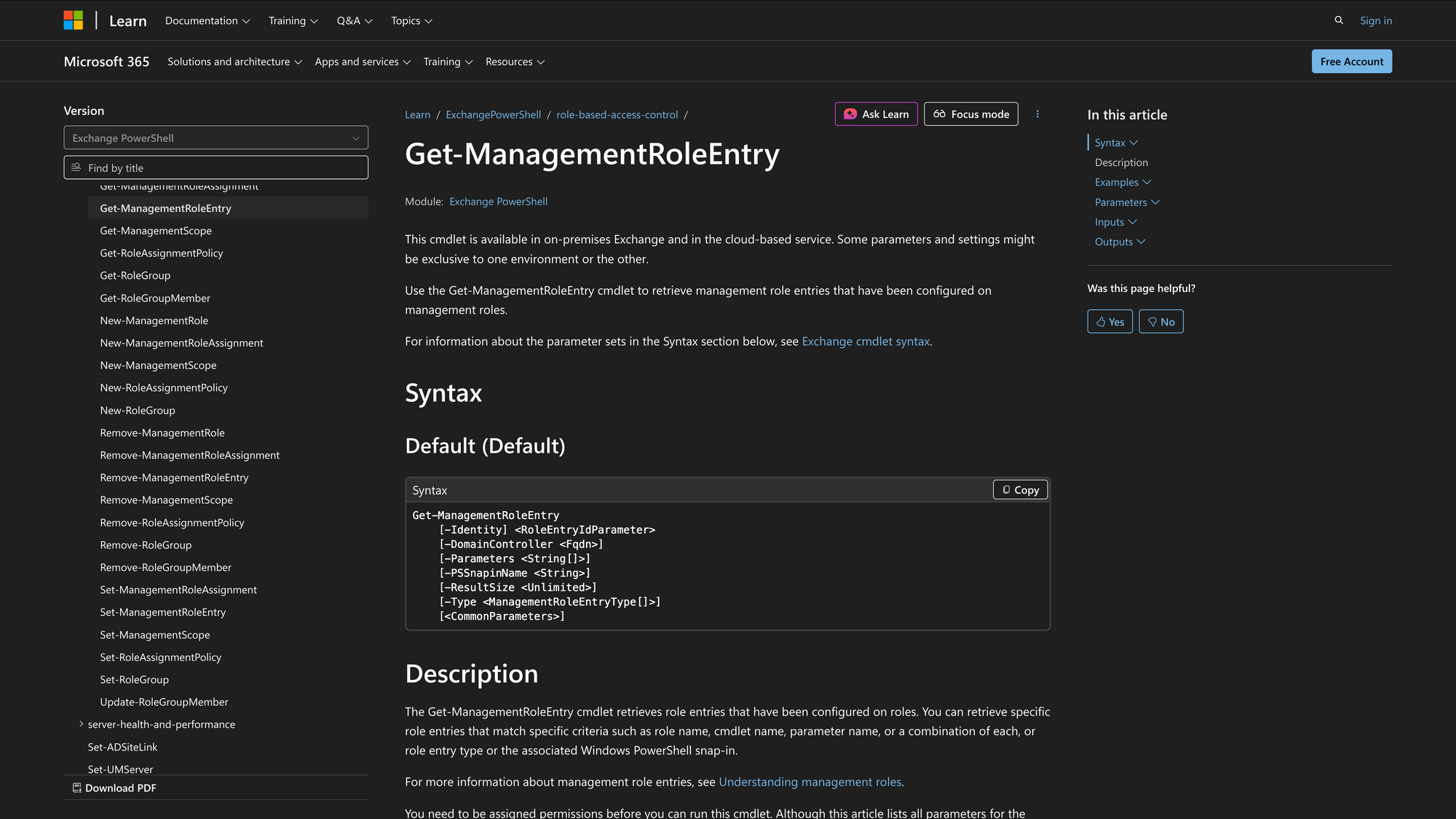
As per official Microsoft documentation, here is the syntax:
Get-ManagementRoleEntry
[-Identity] <RoleEntryIdParameter>
[-DomainController <Fqdn>]
[-Parameters <String[]>]
[-PSSnapinName <String>]
[-ResultSize <Unlimited>]
[-Type <ManagementRoleEntryType[]>]
[<CommonParameters>]
Parameters
- Identity: Specifies the exact role entry you want to view using the format RoleCmdlet (e.g., Help DeskSet-Mailbox).
- DomainController: Identifies the specific domain controller (by FQDN) to use for Active Directory data reads or writes (On-premises Exchange Server only).
- Parameters: Filters the output to include only role entries that contain the specific parameters you list (e.g., finding which roles can use the -Identity parameter).
- PSSnapinName: Limits the results to role entries that belong to a specific Windows PowerShell snap-in.
- ResultSize: Specifies the maximum number of results to return. Use ‘Unlimited’ to retrieve all matching entries.
- Type: Filters the results based on the entry type, such as Cmdlet, Script, or ApplicationPermission.
Key Differences
It is common to confuse Get-ManagementRoleEntry with the broader Get-ManagementRole cmdlet. While they are related, they serve different layers of the RBAC hierarchy.
Practical Uses
1. Validating Least Privilege Configuration
Security best practices dictate that administrators should only have the exact permissions necessary to perform their job functions.
By using Get-ManagementRoleEntry, security auditors can validate that a custom role - such as "Tier 1 Support" - contains only the specific cmdlets required for password resets and basic troubleshooting, rather than full administrative access.
This granular inspection ensures that no dangerous commands, like those that delete data, are accidentally inherited or left active in restricted roles.
2. Locating the Origin of a Cmdlet
When an administrator needs to delegate a specific task, such as moving mailboxes or creating distribution groups, they often do not know which standard management role contains the necessary command.
Instead of guessing, administrators can use this cmdlet to search the entire RBAC environment. By searching for a specific cmdlet name across all roles, they can instantly identify which parent roles (e.g., "Migration" or "Recipients") hold the command, allowing them to assign the correct role group to the user.
3. Troubleshooting Parameter-Level Restrictions
Sometimes a user can run a command like Set-Mailbox but fails when trying to use a specific switch, such as changing a retention policy. This often happens because RBAC allows for parameter trimming, where a role grants access to a cmdlet but strips away specific parameters.
Administrators use Get-ManagementRoleEntry to inspect the specific parameters authorized for a role entry. This helps verify if the issue is a genuine permissions gap where the parameter is missing from the role's allowed list.
Prerequisites
Before utilizing the Get-ManagementRoleEntry cmdlet, ensure that the following environmental and permission requirements are met:
- Service Scope: This cmdlet is available in on-premises Exchange Server and cloud-based services like Exchange Online and Exchange Online Protection.
- Permissions: You must be assigned permissions to run this cmdlet. You must be assigned permissions to run this cmdlet. The specific permissions depend on your environment.
- PowerShell Connectivity: You must have an active session connected to the Exchange Management Shell (for on-premises) or Exchange Online PowerShell.
- Role Existence: The management role you are querying must already exist in the directory; querying a non-existent role will result in an error.
How to Use Get-ManagementRoleEntry
The following examples demonstrate how to effectively use the Get-ManagementRoleEntry cmdlet to audit and manage permissions within your Exchange environment.
1. List All Entries for a Specific Role
Command:
Get-ManagementRoleEntry "Transport Rules*"
This is the most common use case for auditing. If you need to see every action available to a specific role, such as the "Transport Rules" role, you can retrieve the full list of entries. This confirms exactly which cmdlets users assigned to this role can execute.
Explanation: This command queries the "Transport Rules" management role and returns every role entry associated with it. The wildcard character (*) specifies that you want every entry (cmdlet or script) contained within that role object.
2. Find Roles That Contain a Specific Cmdlet
Command:
Get-ManagementRoleEntry *Get-Recipient
If you want to know which roles allow a user to perform a specific action, such as modifying a recipient, you can perform a reverse lookup. This is particularly useful when determining which role to assign to a new staff member, like Simon, who needs the ability to run Get-Recipient.
Explanation: By placing the wildcard before the backslash (*), you tell PowerShell to search all management roles in the organization. It filters the results to show only those roles that possess the Get-Recipient cmdlet as a role entry.
3. Audit Specific Parameters Within a Role
Command:
Get-ManagementRoleEntry "Help DeskSet-Mailbox" | Format-List Name, Parameters
Simply knowing that a role has access to Set-Mailbox is often not enough. You may need to verify if the "Help Desk" role allows users to modify the specific MaxSendSize parameter. This command isolates that specific detail.
Explanation: This command targets the specific Set-Mailbox entry within the "Help Desk" role. It pipes the output to Format-List to display the full list of parameters available to that role. If MaxSendSize does not appear in the output list, users with this role cannot change that setting, even though they can run the cmdlet itself.
4. Filter Entries by Type (Scripts vs. Cmdlets)
Command:
Get-ManagementRoleEntry "Organization Management*" -Type Script
Management roles can contain standard cmdlets as well as scripts. If you are auditing an environment to ensure that no unauthorized legacy scripts are running within your "Organization Management" role, you can filter the results to show only script entries.
Explanation: This command retrieves all entries from the "Organization Management" role but applies a filter to return only those where the entry type is a script. This helps distinguish between built-in compiled commands and external script files.
5. Search for Roles with Specific Parameter Capabilities
Command:
Get-ManagementRoleEntry *Set-Mailbox -Parameters ThrottlingPolicy
In advanced RBAC scenarios, you might need to find any role that allows a user to modify the ThrottlingPolicy on a mailbox. Rather than checking roles one by one, you can search for the parameter directly.
Explanation: This command searches every role (*) that contains the Set-Mailbox cmdlet. The -Parameters switch further filters this list to return only the role entries that specifically include the ThrottlingPolicy parameter. This identifies exactly which high-level roles have the capability to alter throttling settings.
Conclusion
The Get-ManagementRoleEntry cmdlet is the magnifying glass of the Exchange permissions model. While Get-ManagementRole shows you the boxes, Get-ManagementRoleEntry shows you exactly what is inside them.
Whether you are an administrator assigning duties to a new hire like Simon or a security officer auditing the support team for excessive privileges, this cmdlet provides the granular visibility required to maintain a secure and well-structured Role-Based Access Control environment.
Mastering its syntax allows for precise troubleshooting and ensures that your organization adheres to the principle of least privilege.